Translated from the Chinese original.
Over the May Day holiday I spent about a day migrating my old posts from WordPress to Gridea. There were quite a few pitfalls along the way, so here is a record of them.
Basic Workflow
The whole process has roughly the following steps:
- Configure Gridea’s GitHub repository and the network environment for local sync.
- Export the posts from WordPress as a series of Markdown files.
- Import the old posts into Gridea, and change each new URL based on the old URL.
- Add a JS script to the 404 page to approximate a 301 (redirect).
Since most of the process can be found online, I’ll only record the places where pitfalls tend to appear.
Configuring the Gridea Cloud Repository and the Local Sync Network Environment
🤗 Quick Start | Gridea. The installation isn’t complicated, and there are plenty of resources to consult.
The main problem is that Gridea’s local sync often shows 🙁 Sync encountered an error, please check the FAQ or Issues for a solution.
GitHub is blocked under some network conditions, and the connection is very unstable. To access GitHub smoothly you usually need a proxy. Naturally, if Gridea is deployed on GitHub Pages, it’s best to go through a proxy to get a stable connection.
According to the 0.9.2 release notes, Gridea in principle supports using the system proxy directly. But in my testing, with the proxy turned on, I couldn’t capture any of Gridea’s sync traffic at all, so “Gridea uses the system proxy” is somewhat of a mystery.
Let me briefly explain why this problem happens.
A blog stored in a GitHub repository is synced locally through Git, and Git, which operates at the network layer, can’t have its traffic managed by upper-layer proxy software like Clash. The proxy has to be set separately through commands. (For more, see Two Solutions to Slow git clone Speeds | CaryC Blog.)
Gridea presumably wraps Git in a layer of its own, but doesn’t configure a network proxy for Git. As a result, when proxy software such as Clash is on, the network traffic of Gridea’s sync system (Git) isn’t actually taken over by Clash. Instead it tries to connect to GitHub directly, so naturally sync often goes wrong.
Once you know the cause, the solutions follow. There are two directions:
- Make the proxy software take over lower-level network traffic, such as Clash’s Tun mode (though some reports in the Issues section say it still fails).
- Use
proxifierto set up a network proxy for Gridea alone.
I use the second approach. The downside is that I have to open Proxifier in advance whenever I want to sync.
Of course, the first idea can also evolve into using a router-level proxy that takes over all the traffic on the computer, though that obviously has a higher barrier to entry.
Besides these, I also saw another idea: using the GitHub Desktop client to do the sync, which is another option.
Exporting WordPress Posts as Markdown
Exporting WordPress Posts and Migrating to Gridea | Sun Jianbo’s Little Site
I mainly used the approach in this article to export my old posts to Markdown. The annoying part is that, because I had used a table-of-contents plugin in WP that inserted a collapsible table of contents into the post body, the exported posts contain some HTML and the formatting is a mess.
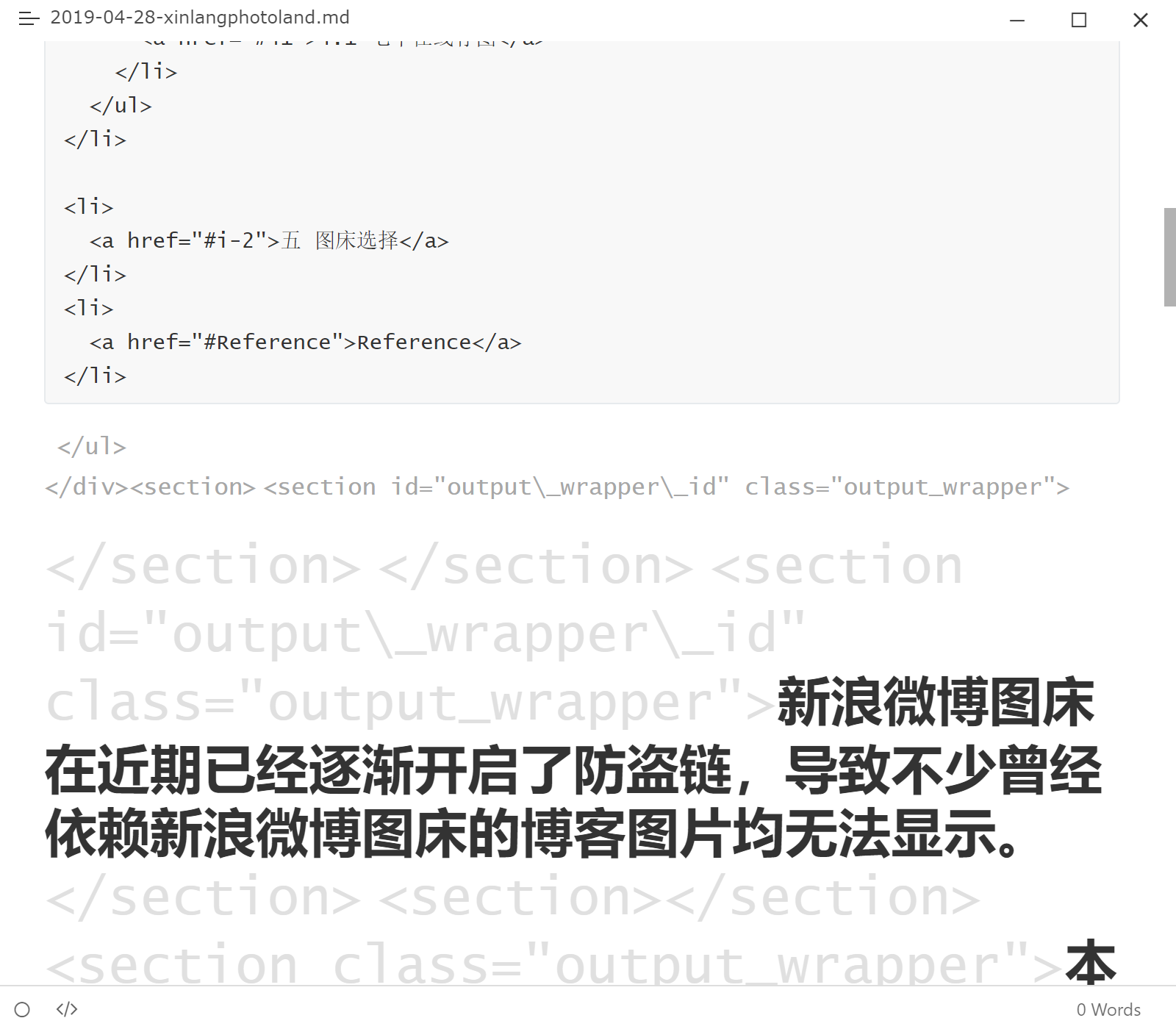
I don’t have a one-click fix for this; I handled the files one by one. I deleted part of each post and then pasted in the content from the original draft.
In fact, the document properties in the exported Markdown that Gridea can recognize are all at the beginning, so the process is really just keeping the beginning, deleting the rest, and pasting in the original draft.
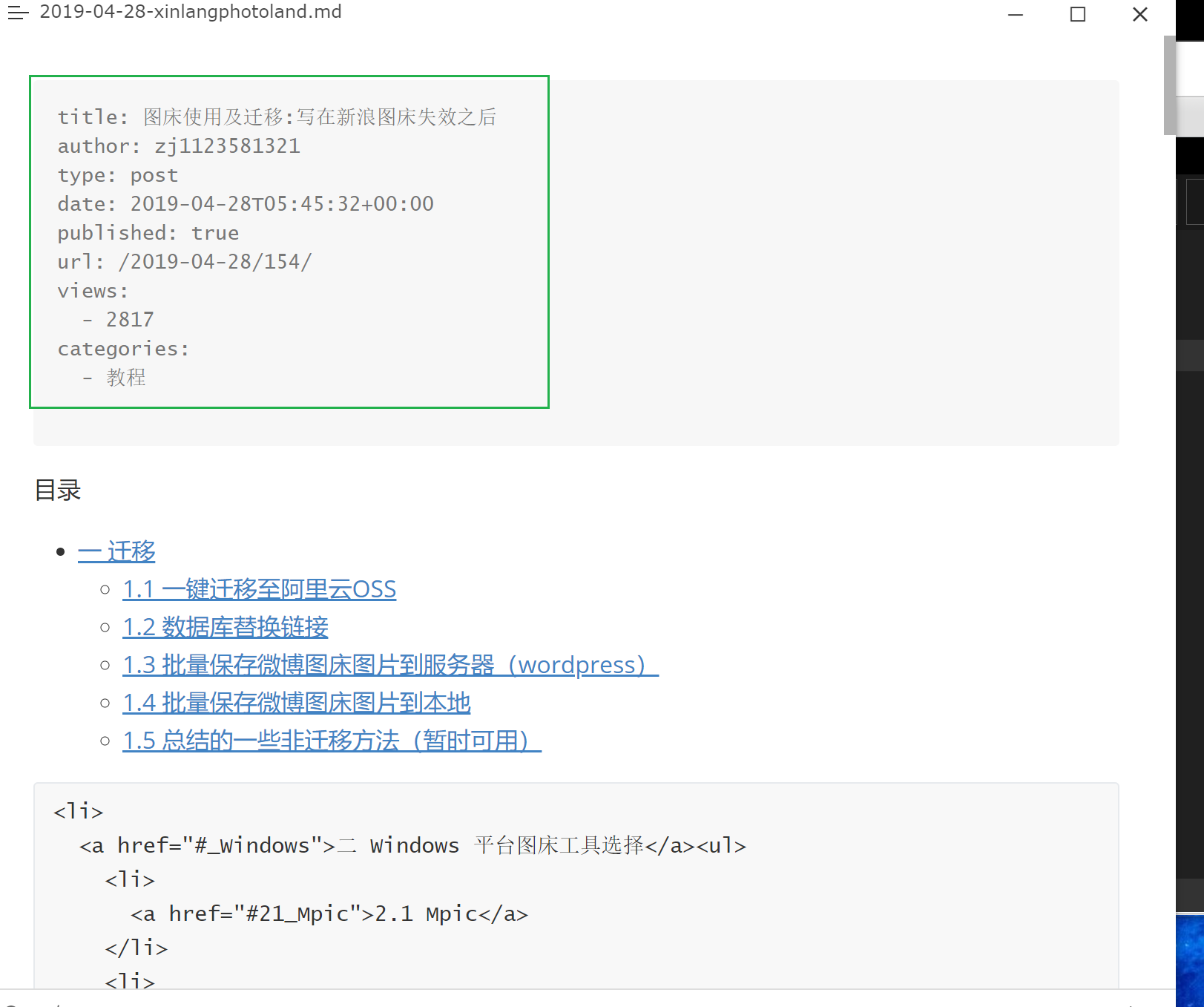
Changing the URLs of the Posts Imported into Gridea
Because the URLs of the old posts may already have been used in many places, I had to put in some effort to keep the imported posts reachable through their old URLs.
The ideal approach is obviously to use the old URLs directly in Gridea. In WP I had set post URLs in the form https://zj1123581321.com/2020-10-12/239/, but Gridea’s default for posts is https://zj1123581321.com/post/xxx, where xxx is custom content that can’t contain “/”, so this path was blocked.
Since that doesn’t work, the natural next thought is to set up a 301 redirect. Unfortunately, a 301 redirect has to be done either on the server or at the domain provider. Modifying GitHub’s servers is obviously unrealistic, and Alibaba Cloud in China doesn’t offer URL redirection either, so this path is also a dead end.
After some searching, I found that a feasible approach is to use JS code on the 404 page to achieve access indirectly: if the user arrives through an old post’s URL, JS sends the user to the post’s current address.
So I set the URLs of the posts imported into Gridea to the form https://zj1123581321.com/post/2020-10-12239/, and then added a piece of JS code to Gridea document path/static/404.html to do the rule-based redirect.
  <script>
  var url = window.location.href;
  var OldWpUrlReg = /.*zj1123581321\.com\/\d{4}-\d{2}-\d{2}\/\d.*/i;
  if (OldWpUrlReg.test(url)) {
      console.log('检测到是历史 WordPress Url');
      var new_url = url.replace('.com/', '.com/post/');
      console.log(new_url);
      var new_url = new_url.replace('https://zj1123581321.com/post/','JustForTemp');
      console.log(new_url);
      var new_url = new_url.replace(/\//g,'');
      console.log(new_url);
      var new_url = new_url.replace('JustForTemp','https://zj1123581321.com/post/');
      console.log('跳转 url:' + new_url);
      window.location.replace(new_url);
  }
  </script>
Now, visiting https://zj1123581321.com/2020-10-12/239/ goes through the 404 page once and then redirects to the new URL.
Hope this helps. That’s all.