Translated from the Chinese original.
Background
I recently bought a pair of Edifier RT-1700 as desktop speakers. They can connect via wired input or Bluetooth, but switching between the two requires the bundled infrared remote.
For a lazy person like me, that is really too inconvenient.
Naturally, I figured I could bring them into Mi Home by simulating the infrared signals. I happened to have a Xiaomi AC Partner 2 at home, so I used Mi Home’s “Custom Remote” feature to replicate all the functions of the speaker’s remote.
Although hooking it up to Mi Home gave me online control of the speakers, whether I did it from my phone or through a Xiao AI speaker, the process was still a bit of a hassle for me. I work at my computer all day and rarely use my phone, so most of the devices in my home are controlled through Quicker, using the Home Assistant API.
So how could I get the speakers into Home Assistant so I could control them through the API?
Approach
The core of the problem is how to control an infrared device in HA.
My HA currently has a Xiaomi AC Partner 2, and in Mi Home it supports learning custom infrared signals. So the natural idea was to have the AC Partner learn the speakers’ infrared codes within HA as well.
Luckily, I found some references on connecting the AC Partner to HA and learning infrared codes:
Learning Infrared Commands with an Air Conditioner Companion in Home Assistant - Blog - binsite
Adding the Xiaomi Air Conditioner Companion 2 Plugin to Home Assistant - HomeAssistant Discussion - Hassbian Smart Home Technology Forum
How to Add an Infrared Remote Learned or Copied by the Xiaomi Air Conditioner Companion 2 Pro to Home Assistant - HomeAssistant Discussion - Hassbian Smart Home Technology Forum
Unfortunately, the “miio plugin with MCN02 support” I installed in HA for my AC Partner 2 kept failing, and the “Custom Remote” brought in through the Mi Home cloud device integration showed up as an entity but could not actually be controlled.
So I had to look for another way. After some searching, I found that in HA you can use the Xiao Miot Auto plugin to call Xiao AI and silently execute voice commands, which effectively lets HA emit infrared codes.
Then automation apps such as Quicker, FV Float Ball, Tasker, and Shortcuts can call HA’s API to control the speakers remotely.
Now, if I want to control the speakers, for example to switch the input source, I can:
- Use the Xiao AI speaker.
- On Windows, bring up the Quicker panel and click the corresponding action.
- On Android, bring up the FV Float Ball panel and tap the custom action.
- On iOS, pull down the notification shade and tap the corresponding shortcut.
- Use the widgets inside the Mi Home app.
That pretty much meets the needs of a lazy person like me.
Full Process
1 Add a Custom Remote in Mi Home
If you already have a device in Mi Home that can emit infrared signals (such as an AC Partner or a universal remote), tap the ➕ on the Mi Home home screen, search for “Custom Remote”, and record the infrared code for each button one by one.
Once recorded, you can give the remote a custom name, and it will then show up in Mi Home as a standalone device. Unfortunately, the interface is ugly and does not support editing or adding buttons afterward, so I recommend getting it all done in one go.
2 Create custom scenes in Mi Home to control the speakers
You need one custom scene for each button. Make sure to check “Control with Xiao AI”, and you can also add other phrases as voice wake-up commands.
3 Connect the Xiao AI speaker to HA
You can use the hass-xiaomi-miot project to bring the Xiao AI assistant from Mi Home into Home Assistant. Connecting just one is enough.
4 Configure actions in different apps to execute commands through HA’s API
In HA’s “Developer Tools - Services”, you can try calling the Xiao AI speaker to execute a custom command with the following configuration.
service: xiaomi_miot.intelligent_speaker
data:
  entity_id: media_player.xiaomi_lx04_7740_play_control
  text: 音箱切换有线
  execute: true
  silent: true
If you want to control it through HA’s API, you need to make some conversions.
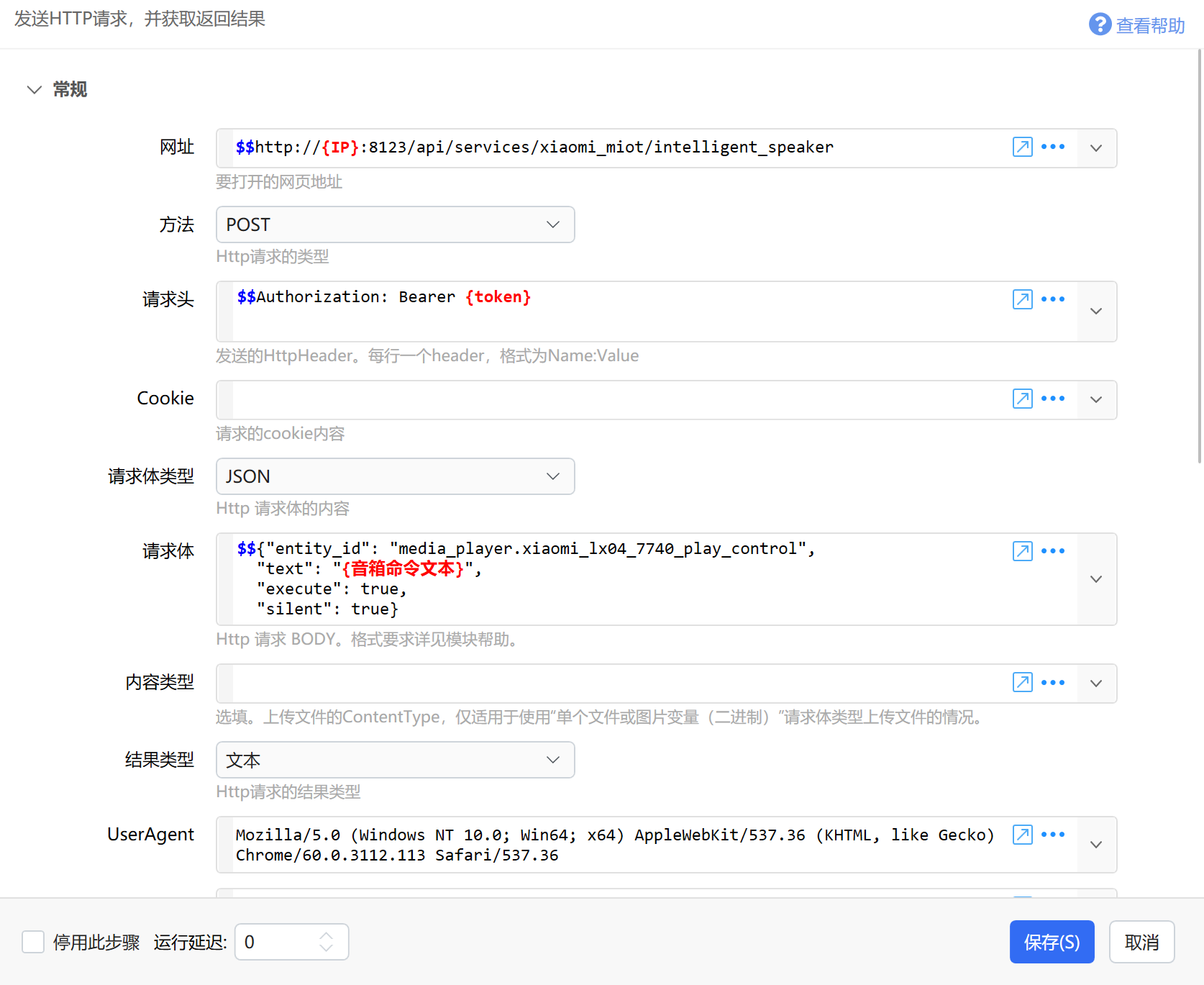
The requests in FV Float Ball and Shortcuts are similar.
One more thing: in principle, having HA call the Xiao AI speaker to silently execute commands lets you bring any Mi Home device and any scene into HA. It is relatively simple to set up, but it cannot reflect device state in real time, so it can only be used to execute commands.
Hope this helps. That’s all.