Translated from the Chinese original.
Background
Some time ago my girlfriend started a master’s program. The lectures are entirely in English and full of technical terms, so sometimes her comprehension can’t keep up with the pace of the lecture.
Reviewing with class replays/recordings has therefore become a weekly must-do. But rewatching a full three-hour class is obviously unrealistic, so converting audio and video to text became a necessity.
Choosing a Solution
Most commercial ASR services struggle to deliver high-accuracy transcription
I’m a Feishu Miaoji (Feishu Minutes) member, so when this need came up, the first thing I thought of was trying Miaoji.
However, the trial transcription showed that Miaoji’s accuracy on specialized course content is quite poor, and it can’t meet the goal of speeding up review through text transcripts.

Other commercial services (such as Tongyi Tingwu, iFlytek Tingjian, Notta, etc.) perform about the same as Feishu Miaoji. There are roughly three reasons:
- Phones are poor at picking up sound from a distance, so the audio files are low quality.
- Typical commercial automatic speech recognition (ASR) services mainly target everyday scenarios such as meetings. When the audio contains too much specialized vocabulary, such ASR services are out of their depth.
- Commercial ASR services have to balance speed, accuracy, and cost. High accuracy usually comes at the price of higher cost and slower speed.
Because of reasons 2 and 3, I gave up on looking for other commercial ASR services.
Whisper’s Stunning Results
In my day-to-day work I’ve built quite a few workflows on top of the Whisper API released by OpenAI, so I also tried Whisper (Large-v2) for transcription. The result was stunning. It even transcribed the way a symbol was written (theta_i^t).

A quick introduction to Whisper: Whisper is an audio-to-text model that OpenAI (yes, the company behind ChatGPT) open-sourced in September 2022, and its transcription accuracy is very high.
But using Whisper for transcription isn’t easy. There are two ways to run it: in the cloud or locally.
The advantage of cloud transcription is that you’re not limited by your local machine’s performance, and it’s relatively fast. But it has two problems:
- A complicated processing pipeline: OpenAI’s Whisper API limits each request to 25 MB of audio, while a 3-hour recording is usually several dozen MB. So you have to split the audio into segments first, request results, and then merge them. If the source is an mp4 file, you also have to extract the audio track, and I hit quite a few pitfalls in that process.
- Cost: OpenAI’s Whisper model charges $0.006 per minute, so 1 hour of audio costs 2.7 yuan at an exchange rate of 7.3. Frankly, the Whisper API is very cheap, only about a quarter of the Google Speech-to-Text API. But suppose there are 5 courses, each class is 3 hours long, and each meets once a week: the monthly transcription cost = 5 x 3 x 4 x 2.7 = 162 yuan, which still stings a bit.
Local transcription doesn’t have those two problems, but it has its own troubles:
- A laptop without good hardware: running Whisper on CPU alone is very slow, and 3 hours of audio might take more than ten hours to transcribe. If you want GPU acceleration, then according to the Whisper model VRAM requirements table, the official Whisper-large model needs 10 GB of VRAM, and my integrated-graphics laptop is simply not up to it. The later Whisper cpp project did cut memory requirements dramatically, but that leads to the second problem.
- Complicated environment setup: what OpenAI released is, after all, project code, and the cost of writing my own code to adapt it is still a bit high. There are quite a few Whisper GUI clients on Mac (Whisper Transcription, MacWhisper…), and Windows has Buzz, but finding a client that supports GPU acceleration is still very difficult.
Moreover, whether you transcribe in the cloud or locally, these approaches only accomplish the audio-to-text step. They lack an intuitive user interface that helps us quickly understand the audio content through the text.
An ideal transcript page can borrow from Miaoji’s design:
- The audio/video player on the left, and the full subtitles on the right for easy reading.
- Clicking a subtitle line jumps straight to the corresponding position in the audio.
PotPlayer’s subtitle browser can approximate this, but long lines get truncated, so it’s barely usable.

Memo, Possibly the Best Whisper Client Right Now
Later, while browsing Appinn (a site for niche software), I came across the beta of Memo AI, and its features happened to meet my needs.
- On both Mac and Windows, it supports GPU acceleration when calling Whisper. Even an integrated-graphics laptop gets decent speed.
- The results page lets you skim all the transcribed content quickly, and you can also click a subtitle to jump to that point in playback.
- Subtitles can be translated with one click, which makes bilingual side-by-side reading easier.
- It goes further with batch transcription, AI chat, and more.

Memo came along just when I needed it. With Memo in place, I can now walk through the whole transcription workflow.
Workflow
Where the Audio and Video Files Come From
Audio and video files come from two main sources: course video replays provided by the school, and recordings made with a phone or voice recorder.
Downloading Course Video Replays
Some courses offer video replays on the Canvas LMS platform, but there is no option to download the video.
Downloading web videos isn’t hard, though. The video is m3u8-based and not encrypted. You just need to get the m3u8 URL, and then an m3u8 downloader can save the video to your machine.
For extracting the video URL, I recommend xifangczy/cat-catch: a Chrome resource-sniffing extension (Maozhua). With “cat-catch”, you can solve about 80% of web video download problems.
For the m3u8 downloader, I recommend N_m3u8DL-CLI, which handles it in one click.
Recording
For courses that don’t provide video replays, the only option is to record them yourself. The devices are basically two kinds: a phone or a voice recorder.
Which device to pick depends on your own situation.
Phones are usually mediocre at picking up sound from a distance. In a setting like a classroom, if you can’t sit in the front row, the teacher’s voice is often drowned out by other noise.
A voice recorder usually does better than a phone, and one in the 100–200 yuan range is generally enough.
For study-abroad and specialized-course scenarios, I don’t recommend choosing a voice recorder for its real-time speech-to-text feature, because there can be three fairly big problems:
- Real-time transcription is very inaccurate: in theory real-time transcription is harder, and non-real-time commercial ASR services are already that bad, so in a specialized-course setting, real-time transcription is almost useless.
- Network problems when you’re abroad: real-time transcription actually sends the recorded audio to the manufacturer’s server, which sends the transcript back. But many manufacturers’ servers are in China, so if you’re overseas you may often run into dropped connections.
- Poorly maintained apps: voice recorders that advertise free real-time speech-to-text usually come with a companion client, but it’s hard to trust the long-term stability of those clients. iFlytek’s recorders, for example, were split into three separate phone apps (Jizhi, Tingjian, Yuji), and each recorder can only connect to specific apps, while one of the apps has been delisted from iOS for over a year now…
Pre-processing the Files (Optional)
Noise Reduction, Loudness Normalization, and Voice Enhancement
Sometimes the recording quality is awkward. This may be because the phone’s microphone is weak, or because the recording position is too far from the sound source. In that case we may run into these problems:
- The target voice in the recording is too quiet to make out.
- The recording contains a lot of noise.
- The first and second halves of the recording differ a lot in volume, so the loudness fluctuates during playback.
So before transcribing, it’s best to process the audio first, which can effectively improve Whisper’s results. I mainly do three things: voice enhancement, noise reduction, and loudness normalization.
For software, I use Pr (Premiere Pro) on Windows and Final Cut Pro on Mac.


Removing Long Blank Stretches
Downloaded course replay videos usually include a 20–30 minute break between sessions, and I usually cut that part out of the video. There are two purposes:
Smaller file size: a 3-hour replay takes up about 1.5 GB, and removing 30 minutes of video saves about 200 MB of storage.
Lower chance of Whisper hallucinating: although Whisper’s accuracy is quite high, it occasionally hallucinates, meaning that from some point on, the transcript keeps repeating one sentence. Long stretches of silence can trigger this.
Manually deleting the blank stretches is a crude fix. A more elegant approach is to transcribe with voice activity detection (VAD) so that blank stretches are skipped automatically. (The developer says a later version of Memo will integrate VAD.)
For cutting the video, you can use editors like Pr/FCP, but that requires re-encoding the processed video, which takes time. If you’re willing to tinker a bit, I suggest using ffmpeg with stream copy, which usually takes just a few seconds to cut the blanks out of a 3-hour video.
There are two core commands:
Extract a specific time range from a video
$$ffmpeg -i "{OriFileLoc}" -ss {RangeTimeStart} -to {RangeTimeEnd} -c:v copy -c:a copy "{OriFileParDir}\temp\temp_video_{temp_video_index}{OriFileExtension}"
Join multiple videos (same format) with concat
$$ffmpeg -y -hide_banner -vsync 0 -safe 0 -f concat -i "{OriFileParDir}\temp\fileList.txt" -c copy "{OriFileParDir}\RmBlank_{OriFileName}{OriFileExtension}"
You can give the local file path to ChatGPT and let it generate the final command for you, or use QuickCut: Your most handy video processing software or the Quicker action I wrote.
Settling on a Prompt

A Whisper Prompt and a ChatGPT Prompt Are Two Different Things
Unlike traditional ASR models, Whisper in some cases can use a Prompt to improve transcription accuracy.
Although both come from OpenAI, Whisper’s Prompt and ChatGPT’s Prompt are very different.
If your Whisper Prompt is “Please try to keep every sentence complete and add punctuation to every sentence”, you’ll find this Prompt does nothing: the transcript may still contain many broken sentences or no punctuation at all.
This is because Whisper is trying to pick up the “style” of the Prompt, not specific instructions.
So what is a Prompt’s “style”?
Based on Whisper’s cookbook, the Whisper prompt discussions, and my own experience, a Prompt’s style shows up in the following ways.
Style 1: Whether the Prompt contains punctuation
Whisper’s transcripts sometimes lack punctuation. In that case you can use a Prompt that contains punctuation to guide Whisper to add it.
- “生于忧患,死于安乐。岂不快哉?” (“Live through hardship, die in comfort—what could be better?”)
- “Please add punctuation to the transcribed text.”
Prompt 1 is meaningful; Prompt 2 is not.
That said, Whisper doesn’t always learn the Prompt’s style and add punctuation. In my tests with the Whisper-large v2 model, a prompt can usually get punctuation added for English content, while for Chinese content it’s down to luck.
Style 2: Easily misspelled names of people, products, and companies
This one is easy to understand: different words can share the same pronunciation. You can specify your preferred spelling in the Prompt.
For example, suppose a conversation mentions Zhang San (张三) and Li Si (李四), and “Zhang San” (张三) could be written with the homophones “Zhang San” (章三) or “Zhang San” (樟叁)…
Then the Prompt can include “Zhang San (张三), Li Si (李四).”
Style 3: Whether it includes filler words
I’ll quote the official wording here, since translating it into Chinese would sound a bit odd.
The model may also leave out common filler words in the audio. If you want to keep the filler words in your transcript, you can use a prompt that contains them: “Umm, let me think like, hmm… Okay, here’s what I’m, like, thinking.”
Style 4: Simplified vs. Traditional Chinese
Since Chinese has two written forms, Whisper sometimes transcribes the audio in Traditional Chinese. Writing the Prompt in Simplified Chinese will most likely fix this.
In general, the Whisper Prompt should be in the same language as the audio being transcribed: an English Prompt for English audio, and a Simplified/Traditional Chinese Prompt for Chinese audio.
Style 5: Using a dialogue-style Prompt to roughly separate speakers in the transcript
This trick comes from prompt vs prefix in DecodingOptions, and it sometimes works.
The plain Whisper model can’t distinguish speakers in its transcript; to do that you generally pair it with Pyannote. But in some scenarios we can use a Prompt to roughly achieve speaker separation, since each transcribed sentence belongs to a single speaker, and a single sentence won’t be attributed to multiple speakers.
The method is to use a dialogue-style Prompt:
- “- How are you? - I’m fine, thank you.”
- “- Have you eaten? - Yes, I have.”
Worth trying for podcast-type content.
Other Tips for Whisper Prompts
A Whisper Prompt should be as long as possible; a Prompt that’s too short makes its style hard to learn.
Whisper only uses 224 tokens of the Prompt. If it exceeds 224 tokens, it defaults to the last 224 tokens. For the concept of tokens, see this article, but Memo’s Prompt box limits the string length directly, so you don’t need to care about token length here; just try to fit your whole prompt into Memo’s input box.
A Whisper Prompt is best kept in the same language as the audio’s source language.
How to Generate a Prompt Quickly
Since I mainly transcribe course content, my Whisper Prompt is usually the keyword list for that class. If the course has a lecture-notes PDF, I drop it straight into Claude and say:
summarize the file, response me with format like :"keyword1, keyword2, keyword3,keyword4.."
If the course has no lecture notes, I type in a few keywords by hand, or just pick a random passage from the textbook as the prompt.
Transcription
Choosing a Model
Whisper transcription requires you to specify a model. The larger the model, the more accurate the transcription and the slower the speed.

GPU Acceleration
Memo implements GPU acceleration on both Windows and Mac.
Windows
Windows machines with a discrete GPU should mostly be fine. Test transcription speeds for some graphics cards:
- An RTX 4090 transcribes 1.2 hours of audio with the Large model in 7 minutes
- An RTX 3080 Ti transcribes 1.2 hours of audio with the Large model in 8 minutes
- An RTX 3080 Ti transcribes 0.4 hours of anime with the Large model in 2 minutes
- An RTX 3060 laptop GPU transcribes 1.2 hours of audio with the Large model in 20 minutes
- An RTX 3060 transcribes 1.2 hours of audio with the Large model in 12 minutes
- A 6600 XT transcribes 1.2 hours of audio with the Large model in 11 minutes
- A 5700 XT transcribes 1.2 hours of audio with the Large model in 15 minutes
If your computer only has integrated graphics, you may run into insufficient VRAM.
But if it’s AMD integrated graphics, you can try adjusting the VRAM size in the BIOS. (High-risk operation, proceed with caution.)
Game running out of VRAM? Monitor black or garbled screen? No adjustment option in BIOS? A tutorial on adjusting AMD iGPU VRAM size (UniversalAMDFormBrowser)
Changing iGPU VRAM on AMD desktops and laptops: is your iGPU still stuck at 512M?
My laptop has an R7-6800H and 32 GB of RAM, with 4 GB allocated from the factory as GPU VRAM. With the Large model and GPU acceleration on, the VRAM fills up, and transcription time to audio duration is roughly 1:2.
I tried raising VRAM to 8 GB; running Whisper then used about 6 GB of VRAM, but the speed didn’t improve over 4 GB. So if you adjust VRAM in the BIOS, 4 GB is usually enough.
Mac
I don’t have an Intel machine on hand, so I’ll mainly share speeds for the M-series machines.
The GPU acceleration on M-series chips scales roughly in proportion to the number of GPU cores:
- M1 Max, 32 GPU cores: transcription time to audio duration = 1:12
- M2 Pro, 16 GPU cores: transcription time to audio duration = 1:6
For a comparison of Mac GPU core counts, see Mac processor comparison: M1 & M2 vs Intel | Macworld.
When using Whisper’s GPU acceleration, besides using the GPU, it also consumes a lot of memory. With the Large model, Memo used 6.4 GB of RAM.

Post-processing the Transcript

If you’re just creating a simple subtitle file for a video, you can basically stop here. But if you’re working on something like a course or a meeting where you need to read the full text quickly, you can optimize the transcript a bit, mainly to fix two problems:
- Some sentences are split across two lines, which is inconvenient when calling translation. (For example, 00:15–00:19.)
- Each line is too short, which makes reading tiring. It would be best to have a paragraph mode where each timestamp holds more content.
The developer says both features will come in future versions, but until then we have to handle them ourselves. I wrote a Python script that converts the raw subtitles into paragraph-mode subtitles: Adjust_SubTitle: adjusts srt files generated by Whisper transcription so a sentence isn’t split across two lines and isn’t too short.
You can export the raw transcript’s srt file, change the srt file path in AdjustSrt.py, and run the script, which automatically generates a paragraph-mode srt subtitle file in the original location. Finally, just create a new Memo task and specify both the audio and the subtitle file to import.

Because paragraph mode is implemented based on the punctuation in the raw transcript, the prerequisite for running the script is that the subtitles Whisper generated contain punctuation.
In addition, punctuation-based paragraph mode can only be used when there is a single speaker. Otherwise a single sentence may end up containing multiple speakers, which can easily cause misunderstanding.
Potential Problems and More Scenarios
Whisper’s Shortcomings
Although Whisper is very good at using context and its transcription accuracy is very high, it also has two rather troublesome problems.
The Headache of Hallucinations
“Hallucination” here means that the text Whisper transcribes is unrelated to the audio and instead keeps repeating earlier transcription results.

From my experience, there are mainly two situations that cause hallucinations:
- Long blank stretches.
- Poor recording quality with fairly heavy noise.
Case 1 is easy to handle: Memo will later introduce VAD to filter out blank content automatically.
Also, according to the Ignore repeated prompt by heimoshuiyu · Pull Request #1253 · openai/whisper issue, setting --condition_on_previous_text False, i.e. not letting Whisper use earlier transcription results when transcribing later audio, can also reduce the chance of blank stretches causing hallucinations, but at the cost of losing Whisper’s advantage in understanding context. (The developer says this parameter will be exposed later.)
But for case 2 I haven’t yet found a good solution; all I can do is try adjusting the strength of the noise reduction and voice enhancement on the audio…
Schrödinger’s Punctuation
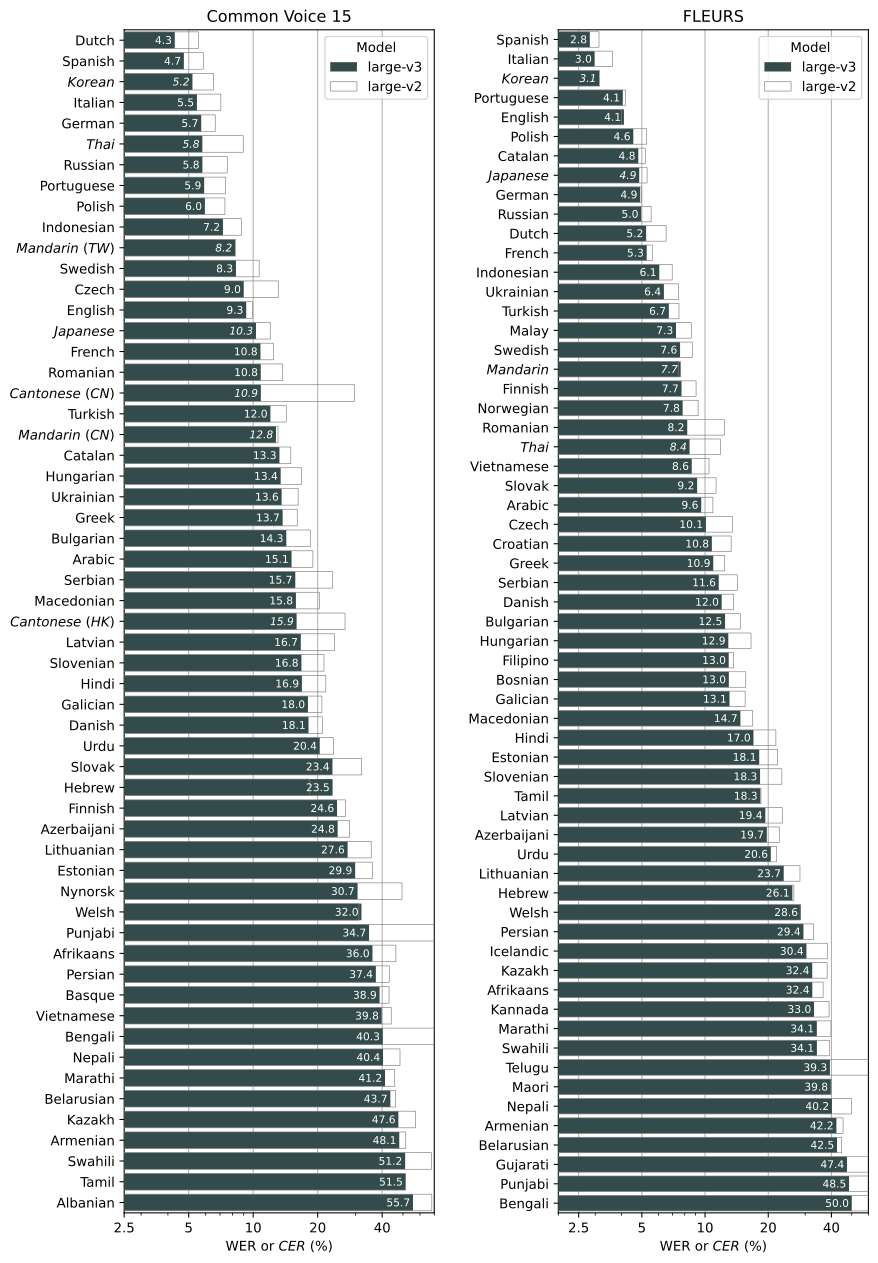
On the leaderboard, Whisper’s English transcription is among the best, while its Chinese transcription is at a mid-range level.
As mentioned above, for English audio a suitable Prompt will most likely get punctuation added to the transcript, but for Chinese audio there’s a chance it won’t. This is rather awkward, and I haven’t found a good solution either. If any of you know how to fix it, please share in the comments.
I once tried using GPT-3.5 to add punctuation to the generated text, but since GPT also hallucinates, it often merged the text directly, and then the timestamps no longer matched the text… Using GPT-4 would cost a bit too much.
Who Whisper Is Suitable For
- People with a strong need for audio-to-text who are willing to spend more time in exchange for higher accuracy.
- Scenarios where privacy matters and the audio can’t be uploaded to the internet.
- People with decent computer hardware (16 GB+ RAM, able to enable GPU acceleration).
I hope this write-up helps you. That’s all.
Simultaneously first published at Precise Transcription: An Incomplete Guide to Turning Audio and Video into Text with Whisper - Sspai. For discussion, feel free to head over to Sspai.