Translated from the Chinese original.
Last night, while eating out, I found that two teachers I’m interested in were both livestreaming on WeChat Channels. I wanted to hear both, but I only had one phone and couldn’t be sure a replay would be available afterward, so I came up with the idea of downloading the WeChat Channels livestream to watch later.
Downloading a WeChat Channels livestream can roughly be divided into three steps:
- Capture packets to get the livestream push URL
- Call a downloader to download it, which ends up producing an flv file
- Transcode the flv into an mp4 file
Capturing Packets to Get the Channels Push URL
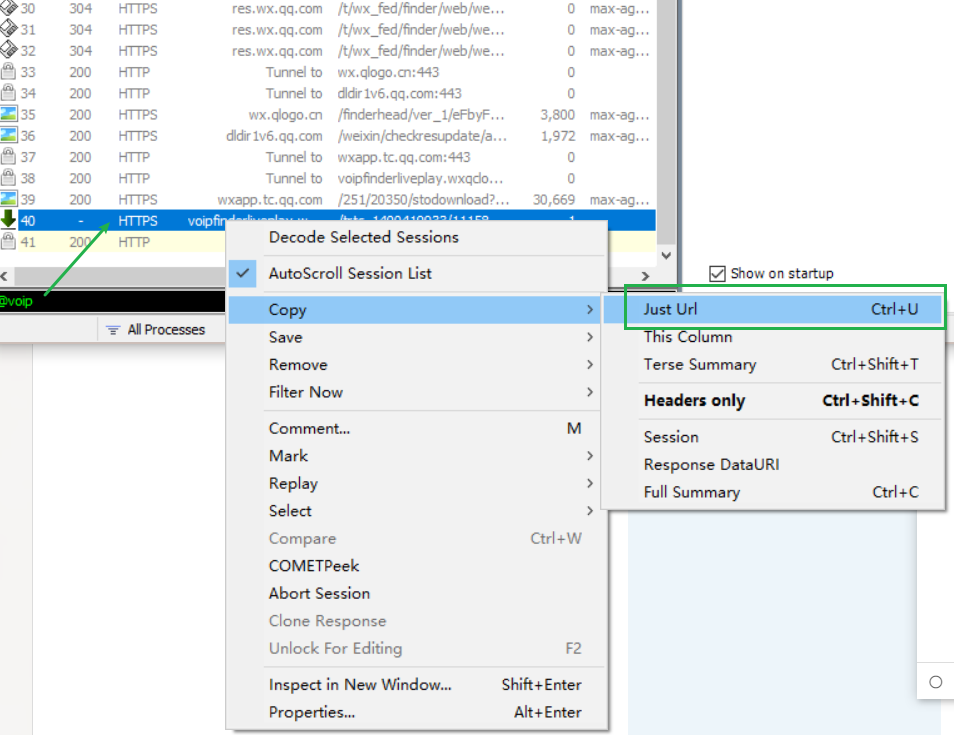
The core of it is setting up HTTPS packet capture on each platform. The URL host of the push stream is http://voipfinderliveplay.wxqcloud.qq.com; filter by this address and you can directly find the URL from which the livestream can be downloaded.
Windows
Fiddler with Proxifier to capture plaintext HTTPS data from PC clients - Piaoyi Blog
Open the livestreaming Channels page on your computer and capture packets with Fiddler.
Android
Packet capture on Android 7.0+ is more troublesome: you either need to Root the phone and install the certificate into the system, or use something like a parallel space to create a virtual environment for capturing. My own phone is rooted, so I simply moved the HTTP Canary certificate into the system store.
Installing the HTTP Canary (Little Yellow Bird) System Certificate on Android 11 - Bilibili
Once HTTP Canary is installed, just capture traffic from WeChat.
iOS
Capturing HTTPS on iOS is comparatively very easy. I use Stream to do it.
Calling a Downloader to Download the flv File
In principle, whichever device you got the Channels URL on, you can use a downloader directly on that same device.
But phone networks aren’t very stable, so I prefer to download everything on my computer. The downloader I use on the computer is IDM.
Using IDM to download livestream videos - IDM China
I use Quicker’s long-connection feature to remotely call IDM on my computer from my phone and complete the download.
Download files just by speaking: remote control with Shortcuts + Quicker - Sspai
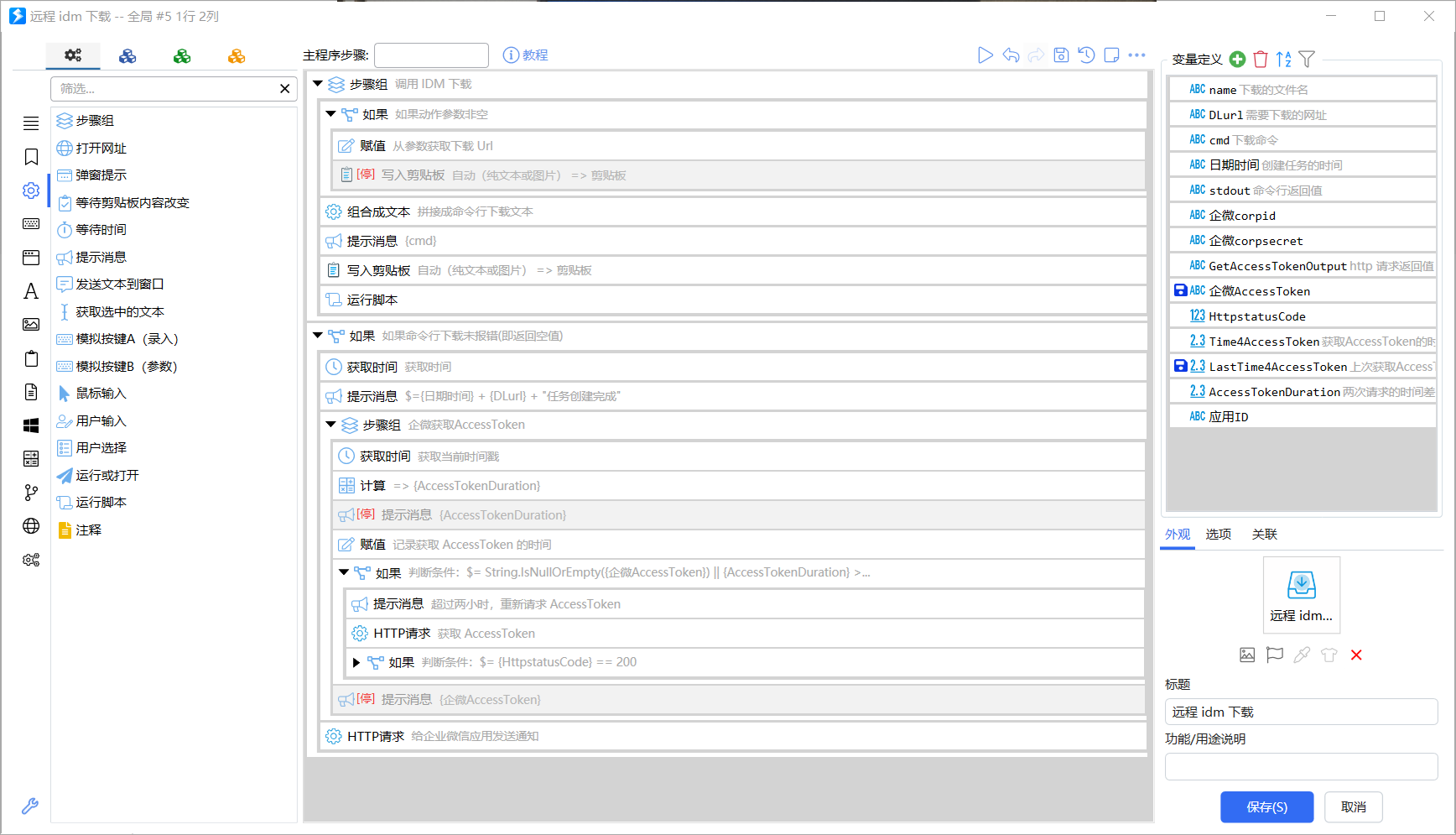
For the notification that a download task was created successfully, I didn’t use the Bark app; instead I send it to a WeCom (Enterprise WeChat) app, so that all my devices receive the notification.
Then I trigger it through the FV floating ball on Android and through Shortcuts on iOS.
Using a long connection to exchange clipboard text between phone and computer (fooView, text only) - Quicker
Sync clipboard - Action info - Quicker
Transcoding flv to mp4
There are usually two ways to get the FLV file of a WeChat Channels livestream:
- Wait for the Channels livestream to end, and the download will end automatically.
- End the IDM download early, find the downloaded content in the cache folder, and rename its extension to
.flv.
But whichever kind of flv file you get, the progress bar basically stops working when you play it in an ordinary player. The main reason is:
How to record livestreams without danmaku or watermarks? - freejishu’s Beautiful World
At this point, most players can play it. The original, unprocessed stream — how does it taste?
However, we find that time-related features in the player, such as fast-forward, rewind and the progress bar, no longer work. The reason is simple: the timestamp data of this kind of flv stream doesn’t start from 0:00.000 (you can’t possibly start recording the instant the streamer goes live, and the livestream platform will most likely swallow the first 1-2 seconds of the stream). We still need to do some processing.
6. Processing the recorded file
This is where MediaCoder comes in. MediaCoder not only supports CUDA encoding acceleration but can also copy streams, which makes it a magic tool for processing this kind of flv.
Drag the flv to be processed in, find the Video tab below and check “Copy video stream”, then find the Audio tab and choose “Copy audio stream”. The other settings don’t matter; don’t forget to change the save location, and then just click Start.
You can process it with MediaCoder, or with Maruko Toolbox (小丸工具箱).
Updated 2024-01-16:
Some livestreams on platforms such as Douyin and WeChat Channels are now in HEVC format rather than the original H.264. None of the tools above can convert an HEVC FLV into an MP4 video.
However, such an flv can still be decoded and played with PotPlayer.
The reason is that ffmpeg’s flv support currently doesn’t include hevc encoding, so all of these tools that use ffmpeg for video conversion report an encoding error.
So what’s the solution?
zymill/flvAnalyser: FLV v1.0 analyser
This tool solves the flv+h265 conversion problem perfectly; its developer is an expert in this area. The software comes with a one-click flv-to-mp4 conversion feature :)
If you want to turn the video into text for a quick skim, you can skip the transcoding step and upload the flv file directly to Feishu Minutes (飞书妙记). It can still recognize the text, and the audio and video play normally.
That’s all.