Translated from the Chinese original.
Introduction
A few days ago, a few months ago, I came across Automatic Bookkeeping with Qianji and Tasker via Notifications - Sspai, which reminded me of Tasker, which I had bought long ago and then forgotten in a corner… I could relate. Since automated bookkeeping really clicked with me, I used it as a starting point to begin tinkering with Tasker automation.
After a few weeks of tinkering, hanging around various forums, and modding setups from all kinds of articles, here is what I have working so far:
- Automatically sync call recordings to Jianguoyun after a call, and automatically sync fooView screenshots to my computer desktop
- Map apps open/close in sync with GPS
- Video apps open/close in sync with auto-lock
- Automatically read WeChat notifications aloud when a specific pair of earphones is connected while the screen is off
- Automatically play listening practice when earphones are connected, except in specific apps
- Automated bookkeeping with Qianji (with notes, selectable ledgers, delayed bookkeeping, and automatic bookkeeping for password-free payments)
- Manage smart home devices by tapping my band, shaking my phone, or using Quicker
- Remind me through the band when the phone is charged to 95%
- After I start a workout in Keep, the Xiaomi band automatically starts recording
- Control another phone for notification forwarding, playback control, and more
- Run Tasker tasks through Xiao Ai (Mi AI assistant)
- Scan a specific NFC card to open the body-scale connection screen
- …
Below I’ll walk through the use cases and configuration ideas for these automations. For some of the more complex setups I’ll provide importable files. I hope they help.
1. Tasker + FolderSync
1.1 Automatically Syncing Call Recordings to Cloud Storage
What It Does
Just in case, I want my recordings to be synced to cloud storage at the very least, and ideally later synced to other devices or shared with family. Xiaomi’s built-in cloud service can actually sync call recordings to Xiaomi Cloud, but Xiaomi Cloud isn’t a dedicated cloud-storage product, so its multi-device sync and sharing controls are less polished than those of services like Dropbox or Jianguoyun.
So I needed a bridge to link the phone’s local recordings folder with a cloud drive and sync them in both directions.
FolderSync is exactly this kind of app, used to sync between cloud storage and local storage. It supports common services such as Google Drive, Dropbox, OneDrive, and MEGA, and can also connect to other storage through protocols such as FTP, SMB, and WebDAV.
In the end, I used FolderSync to link a local folder with a Jianguoyun folder over WebDAV. The call-recordings folder on Jianguoyun can then sync to multiple devices, and its sharing permission controls are also fairly complete.
This way, after a call ends, the recording is automatically synced to Jianguoyun, and Jianguoyun then syncs the file to my computer.
Configuration Approach
After setting up a sync item in FolderSync, configure the following in Tasker.
if (call end detected):
	call the Tasker FolderSync plugin to sync a specific item
Endif
Requirements
- No Root or adb required
- Downloading FolderSync requires a VPN-style workaround (Google Play)
- If the cloud drive is a foreign product such as Google Drive or Dropbox, that also requires a VPN-style workaround
1.2 Automatically Syncing fooView Floating-Ball Screenshots to the Computer Desktop
fooView Floating Ball (com.fooview.android.fooview) - 1.4.4.1 - Apps - Coolapk
fooView Floating Ball - File Browser and Gesture Screenshot - Apps on Google Play
What It Does
Writing these phone tutorials inevitably means taking screenshots for demonstrations, and the “screenshot, share to computer, save on computer” workflow is a bit tedious. I wanted to simplify getting screenshots onto my computer as much as possible.
So I set up two-way sync between the phone’s screenshot folder and a target folder on my computer through Jianguoyun and FolderSync. As soon as a new screenshot is detected, FolderSync syncs the local folder to Jianguoyun, and Jianguoyun then syncs that folder to the computer. The whole flow boils down to “take a screenshot, and the result appears on the computer.”
So how do we detect when a new screenshot is created?
This is where Tasker’s Logcat Entry feature comes in; for details, see the official Logcat Entry documentation. Put simply, when an app performs different operations it leaves different traces, and Tasker can watch for those traces to infer what the app has done.
From here on, once you configure a new sync item in FolderSync, this action is done.
Configuration Approach
if (Logcat Entry detects that fooview saved a screenshot):
	call the Tasker FolderSync plugin to sync a specific item
Endif

# My Logcat Entry settings - Mi10 - MIUI12, for reference only. This part will differ depending on your device and default save folder
Component:MiuiGallery2_SaveToCloudUtil
Filter:[thread-pool-0] insert /storage/emulated/0/Pictures/Screenshots/
Requirements
- No Root required, but the Logcat Entry feature needs adb authorization (when you add the feature, Tasker tells you how to do it)
- Downloading FolderSync from Google Play requires a VPN-style workaround
- I recommend Jianguoyun for cloud storage, though OneDrive on Windows can achieve the same effect; if you don’t use cloud storage, you can also sync directly to the computer over a local network via FTP or SMB.
2. Tasker + Notify&Fitness for Mi Band
2.1 Band Reminder When the Phone Charges to 95%
Notify & Fitness for Mi Band - Apps on Google Play
NF for Mi Band is a third-party client for the Xiaomi band. Compared with the official Mi Fitness app, NF is cleaner and more fun to play with. For a detailed introduction to NF, see Say Goodbye to Ads and Make the Xiaomi Band Better on Android: Notify & Fitness - Sspai
What It Does
For the long-term health of my phone’s battery, I try to avoid charging it to full.
One approach for when the charge reaches 95% is to cut power with a smart plug, but the problem is that I don’t know what to use as a trigger to send the plug a command to restore power, or I might plug the phone in and only discover hours later that I forgot to turn the plug back on.
Another approach is to send a notification to the band at that point and unplug the charger by hand…
I originally set this up with Tasker, but later found that NF also has a built-in full-charge reminder. Anyway, the point of this setup is that you can now connect your phone and band through Tasker, which makes the band much more fun to play with.
Configuration Approach
if (battery level = 95) And (charging):
	send a notification to the band
Endif
Requirements
- No Root or adb required
- You need to install the third-party Xiaomi band app Notify&Fitness for MiBand. If you download it from Google Play, you need a VPN-style workaround and Google services; Notify & Fitness for Mi Band APKs - APKMirror may let you avoid Google services
3. Tasker + Qianji
What It Does
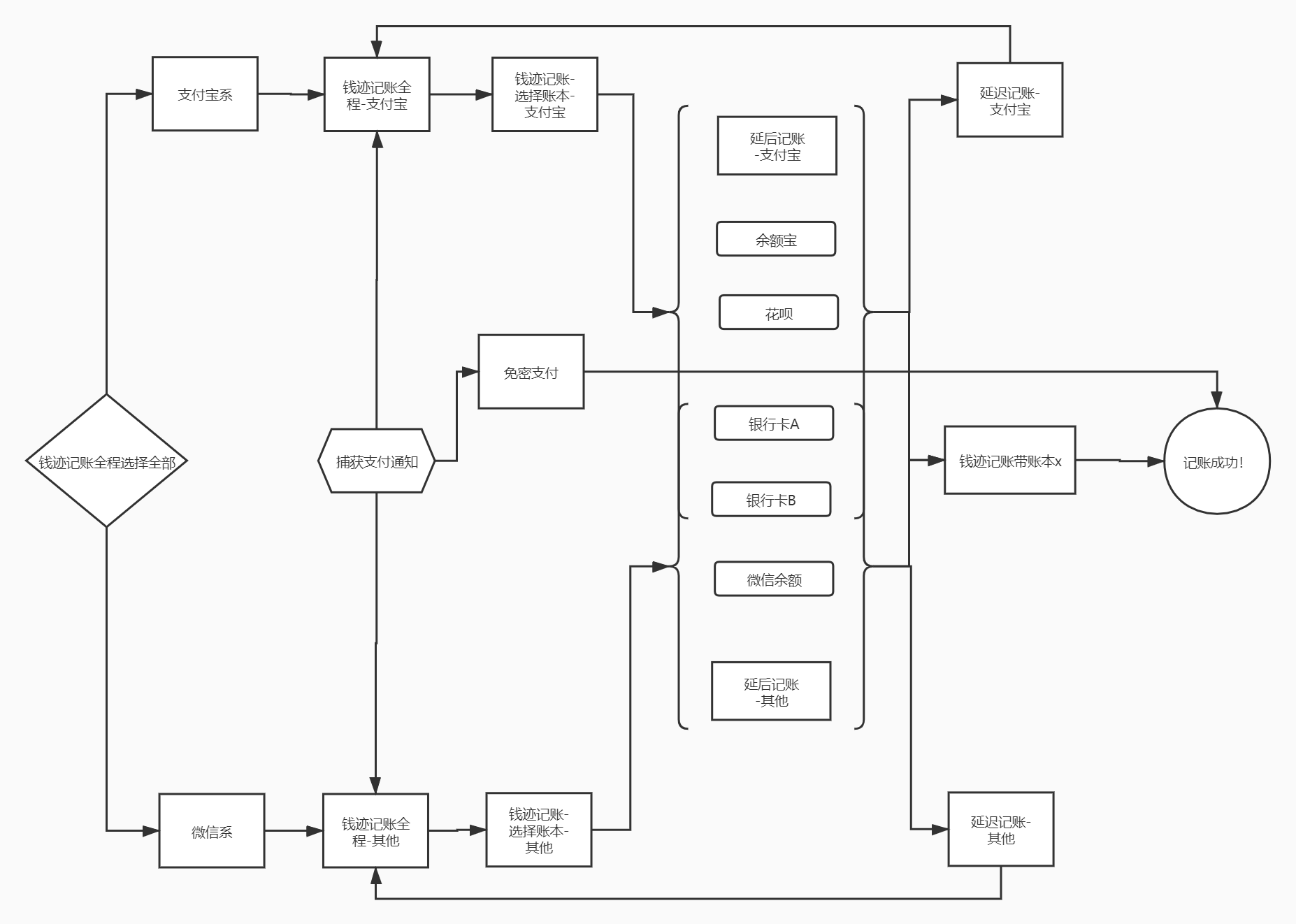
This automation was mainly inspired by Automatic Bookkeeping with Qianji and Tasker via Notifications - Sspai. I had tried many methods before but still kept forgetting to log expenses. Linking Tasker with Qianji lets me log an expense quickly right after paying, and it supports these features:
- If a notification (with an amount) exists, the amount can be captured from it
- Notes can be added
- An account can be selected
- Delayed bookkeeping is supported (it creates a notification in the notification bar that won’t be cleared by accident)
- Alipay password-free payment items can be logged automatically
See this demo video for details:
[Bilibili demo video]
One small imperfection: I still haven’t found how to make Tasker directly bring up the keyboard’s numeric input mode, so typing the decimal point takes an extra step, which feels a bit inconvenient. If anyone knows how, please point it out in the comments. Thanks.
Configuration Approach
# Two Profiles, two Scenes, 16 Tasks

# Variable notes
%ACCOUNTNAME #account the record is saved to
%Accountname1 #bank card account 1
%Accountname2 #bank card account 2
%Accountname_hb	#name of Huabei in Qianji, default "Huabei"
%Accountname_wechat #name of WeChat balance in Qianji, default "WeChat"
%Accountname_yeb	#name of Yu'e Bao in Qianji

%Choice	#records whether it's the Alipay family (Yu'e Bao, Huabei, bank cards) or the WeChat family (WeChat Wallet, bank cards): 1 = Alipay, 2 = WeChat
%Evtprm #because %evtprm() is a local variable, this stores the notification text for passing between tasks
%If_have_unrecord_bills #records whether there are bills that need delayed logging (0 = none, 1 = yes)
%Notification_to_cancel #records the text of the delayed notification to clear
%QJURL 	#the Qianji bookkeeping link
%Tag	#records whether a ledger was selected; if no ledger is selected, bookkeeping is canceled
Requirements
- No Root or adb required
- You need to install Qianji
References
Automatic Bookkeeping with Qianji and Tasker via Notifications - Sspai
Automatic Bookkeeping API · Qianji User Guide
Import Instructions
- Long-press the little house icon at the bottom left and import the project
- In the “Payment Bookkeeping” project, switch to the “Tasks” screen and open “Initialization Commands”
- Edit the account names to match the names of the accounts in your own Qianji ledger
- Tap the bottom left to run this task
- (Optional) Go to Iconfont - Alibaba Vector Icon Library to search for icons for your accounts, and change the corresponding account icons and backgrounds in “Scenes”
- For Alipay password-free payment notifications, you need to adjust the bookkeeping account, notification-text cleanup, expense categories, and other settings yourself
PS: Huawei phones need EMUI 10 or Magic UI 3.0 or above to use Qianji’s automated bookkeeping interface. I don’t yet know whether older system versions have a workaround.
4. Tasker + HomeAssistant
The Mi Home app has actually been working hard to simplify controlling smart devices through shortcuts, widgets, lock-screen swipes, notification-bar controls, and so on. But first, I’m genuinely lazy, and with these methods I still have to think about where to find the device; second, the Mi Home app can’t use the phone’s wider variety of sensors for automations, which falls a bit short. Once these devices are connected to HA, though, the sky’s the limit.
Also, although controlling appliances through Xiao Ai takes just one sentence, if other people are around I find it embarrassing to shout at Xiao Ai..
For these two reasons, I chose to connect my smart home to HA, adding one more control channel and more ways to play with scenarios.
4.0 Installing HomeAssistant and Connecting Mi Home Devices
Installing Home Assistant
Home Assistant is a free and open-source home automation software written in Python, focused on local control and privacy. It has very broad device support; as of May 2020, it supports more than 1,600 modular plugins or add-ons for integration with systems of different IoT technologies, with systems and services available as “integration components”. Actions such as turning lights on/off are triggered through automations, voice commands, mobile apps, or controls on Home Assistant’s web-based front-end user interface.
As the central hub of a smart home, Home Assistant needs to run 24 hours a day, so it is usually installed on a low-power Raspberry Pi
But I don’t have a Raspberry Pi, so I tried installing it on Windows and on an Android phone, and both worked. If you don’t have a Raspberry Pi, a NAS, or similar hardware, I recommend installing it on an old Android phone.
Installing HA on Windows
Tutorial: homeassistant installation and startup - HAChina
A few pitfalls to avoid:
- As of 2020.8.12, HA requires Python 3.7 or later
- Some libraries downloaded by pip3 come as source code, so the local C++ compiler is called during installation; you therefore need to install Microsoft Visual C++ Build Tools
- If you run into
Stuck at INFO:homeassistant.core:Timer:starting, you can fix it withpip install home-assistant-fronted - If you want Home Assistant to start automatically at boot, you can make a
.batscript and add it to startup. The code below is for reference (no persistent black window)
@echo off
if "%1" == "h" goto begin
mshta vbscript:createobject("wscript.shell").run("""%~nx0"" h",0)(window.close)&&exit
:begin
REM

hass
Installing HA on Android
I successfully installed HA on a Redmi Note 4x (rooted, MIUI11-9.10.10, Android 7) and a Huawei Nova 2s (not rooted, EMUI8.0, Android 8), though the problems I hit on each were different, so the commands are for reference only.
The following steps require Termux to be installed on the device. Termux is a terminal emulator for Android that is open source and needs no Root. For a detailed tutorial, see Termux Advanced Terminal Installation, Usage and Configuration Tutorial | Guoguang.
I also assume you have some command-line basics and are good at searching. The core idea boils down to four words: install what’s missing.
On a rooted device you can go straight into the folder and edit files; on an unrooted device you need an editor like Vim to edit the relevant configuration, so please look up how to use Vim yourself.
Reference tutorials:
Installing HomeAssistant on Android with Termux as a HomeKit Hub for Your Home
Turn an Idle Android Phone into a Home Assistant Hub - HAChina
Pitfalls:
- According to No more -dev packages - Termux Wiki, Termux stopped supporting xx-dev packages from 2019.7.28, so packages such as python-dev and openssl-dev in the tutorials above no longer need to be installed.
- Commands for extra packages you may need to install:
pip install Pillow,pip install aiohttp_cors,pip install home-assistant-fronted
Connecting Mi Home Devices
Using the Xiaomi Smart Plug (WIFI version) as an example
- Ideally, have a rooted Android device
- Mi Home app versions before 5.0.19
- Ideally, have Google Play installed
How to get the token of a Xiaomi WIFI device
Note that every : in the yaml configuration file should be followed by a space.
switch:
  - platform: xiaomi_miio
    name: Original Xiaomi Mi Smart WiFi Socket #give your plug a name
    host: # the plug's IP address
    token:	# the token you obtained
    model: chuangmi.plug.m3
Adding the Xiaomi Smart Plug Basic Edition to hass
Connecting a Xiaomi WiFi plug to HA, with miio installation
Commands you might miss:
pip3 install python-mirobo
npm install miio
References
Home Assistant Chinese Documentation
Documentation - Home Assistant
Xiaomi Smart WiFi Socket and Smart Power Strip - Home Assistant
REST API | Home Assistant Developer Documentation
4.1 Shake the Phone at a Specific Spot to Toggle the Light
What It Does
This is just an example to show that you can use the phone’s sensors as triggers to control a smart home.
- Shake the phone at a specific angle for a certain time, and the Xiaomi plug turns on/off.
- When you place the phone on a wireless charging stand and the orientation sensor stays unchanged for 5 seconds, the wireless charging plug turns on.
- Place the phone on a certain stand for more than 5 seconds / scan the NFC tag on the stand, and Bluetooth connects to the speaker, the lights go off, and it enters cinema mode.
Configuration Approach
After Tasker updated to 5.9.3, it added the Any Sensor feature, which means Tasker can use many sensors on your phone that weren’t listed before. See this demo video: Live Creations #42 - New Sensor State, Event and Actions - YouTube.
if (shake left and right, low sensitivity, long duration) And (gravity sensor within a specific range):
	send the light on/off command to HA
Endif
As for how to send requests to HA from Tasker, see ⚙️ Using Tasker with Home Assistant (V2) - Share your Projects! - Home Assistant Community, which explains it very clearly.
I’ll still use the Xiaomi Smart Plug (WIFI version) to show my configuration (you need to import the HA call-service task in advance):
# Turn off the Xiaomi smart plug
In Tasker choose "Perform Task", with these parameters
Name: HA call-service
Priority: %priority
Parameter1(%par1): switch.turn_off
Parameter2(%par2):{"entity_id":"the name I gave my Xiaomi plug"}
4.2 Single-Tap the Band to Toggle the Light
What It Does
This example shows that the band can also be a trigger for controlling a smart home.
- Going to bed at night without my phone, I turn off all the lights with the band: on the Xiaomi band’s heart-rate screen, long-press until it vibrates, then single-tap, and the Xiaomi smart plug turns on/off.
- After entering the bathroom, use the band to make the phone connect to the bathroom speaker and play/pause music.
Configuration Approach
This is really a further application of Tasker + Notify&Fitness For Mi Band.
If intent received (com.mc.miband.buttonPressed1):
	send the light on/off command to HA
Endif
Of course, NF for Mi Band can receive/send many more Intents; you can find detailed reference in the Notify&Fitness for MiBand intent reference documentation.
4.3 Managing HA Home Devices with Quicker
What It Does
This part is a bit off-topic.. but it really was one of my original reasons for tinkering with HA: controlling the smart home from the computer. Before, turning lights and the air conditioner on or off meant picking up the phone, unlocking it, and tapping a desktop shortcut, which was far too much trouble for a lazy person like me..
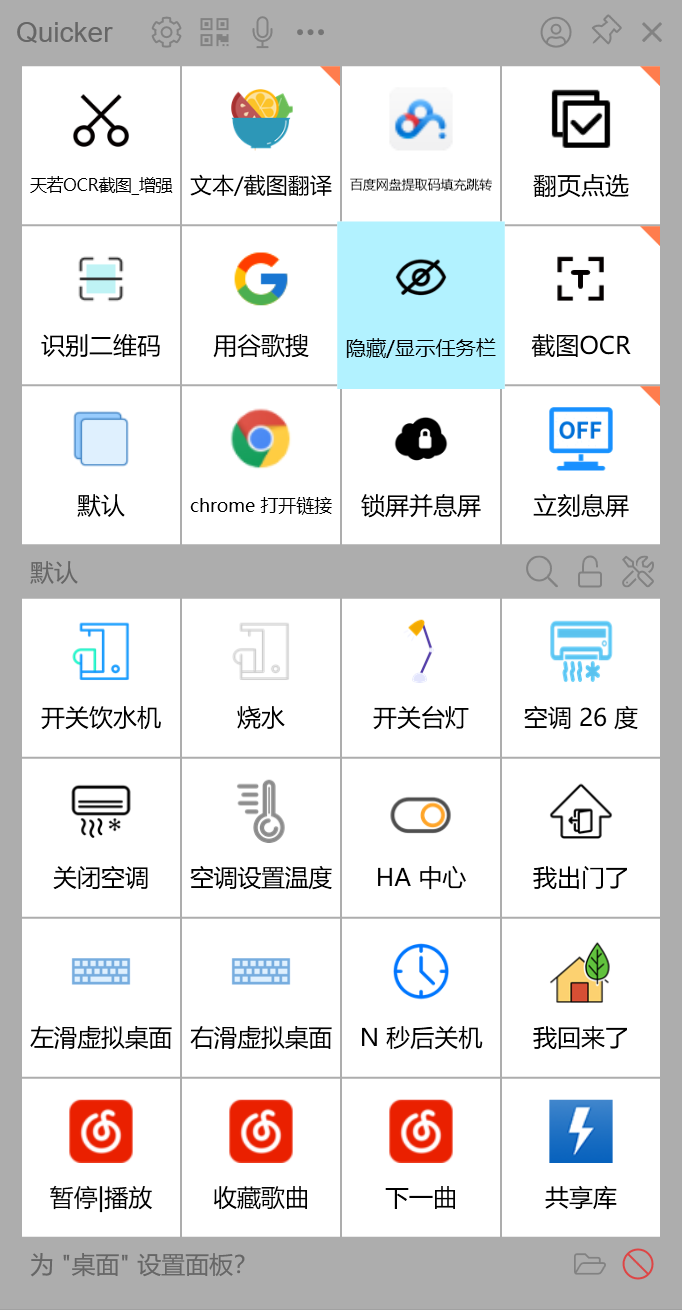
Now on Windows I just bring up the Quicker panel and click with the mouse to toggle lights and set the air conditioner temperature, with no phone involved at all. It’s very comfortable.
For example, with the “I’m heading out” command, once it runs, the desk lamp, water dispenser, and air conditioner turn off automatically, and the computer locks and turns off its screen.
Configuration Approach
Essentially, Quicker sends a POST request to HA to carry out the operation. For details, refer to the official docs at REST API | Home Assistant Developer Documentation.
Again using the Xiaomi Smart Plug (WIFI version), here is the configuration for Quicker sending an HTTP request to turn off the plug:
- URL:
http://IP_ADDRESS:8123/api/services/switch/turn_off - Method:
POST - Headers:
Authorization: Bearer {your generated token} - Body type:
JSON - Body:
{"entity_id":"find it under 'Services'"}
Other APIs for reference:
- Mi Home Desk Lamp 1st gen toggle:
http://{IP}:8123/api/services/light/toggle - Mi Home AC Partner 2nd gen set temperature:
http://{IP}:8123/api/services/climate/set_temperature
References
Connecting the Xiaomi AC Partner 2 plugin to HA
4.4 Keeping the Phone’s Battery Between 40% and 80% Automatically
What It Does
The two phones mentioned above both stay at home all year round, doubling as SMS forwarders and HA hubs. To keep their batteries as healthy and safe as possible, both phones automatically cut off their charging plug when they reach 80% and turn it back on when the charge drops to 40%.
PS: iOS can actually achieve the same effect with “Automation” and Mi Home scenes.
Configuration Approach
if (battery reaches 40/80 %):
	turn the charging plug on/off
Endif
5. Tasker + Join
Join is another product by the author of Tasker, a tool that connects Windows, Android, browsers, and IFTTT.
The features I like most:
- Webpages opened in Chrome on Win10 can be sent directly to the phone to open, and vice versa: webpages opened on the phone can be shared to Chrome
- Automatic clipboard sync
- Sending notifications between multiple devices + Tasker integration
Of course, Join has many more features, such as controlling the phone from the computer to take a screenshot to the computer, record the screen to the computer, locate the phone, or make the phone ring…
However, a big problem with Join is that it relies on FCM for push, so you need a stable VPN-style connection for a good experience.
This part requires no Root or adb.
5.1 Controlling Another Phone to Play/Pause Music and Adjust Volume
What It Does
Recently I’ve been trying to rebuild my own speech filtering system following Everyone Can Use English - Speech Chapter, so I need to listen to a lot of English material. But I had no speaker for playing it out loud, so I turned my attention to my long-idle SMS-forwarding phone, the Redmi Note 4x.
Because it sits in an awkward spot that’s inconvenient to reach, I wanted it not only to play for long stretches but also to let me control play/pause and volume remotely from another phone. Going further, I wanted it to stop playing automatically when my main phone gets an incoming call, and resume when the call ends.
After installing Tasker on the Redmi, I found Poweramp – Music Player for Android, a local music player that supports controlling play/pause, previous track, next track and more via Intents. So this part is really Tasker + Join + Poweramp.
Configuration Approach
- On the Mi10, create a task in Tasker that sends a specific piece of text to Join on the Redmi through Tasker’s Join plugin
- Tasker on the Redmi detects through the Join plugin that the specific text was received, and runs a command through an Intent to control Poweramp playback
One thing to note: if you download the Poweramp(intents) v1.1 “task” from the link provided by a Reddit user in the references, its default Intent Target is Service; if the control test fails, you may need to change it to Activity for it to work. You can also import my modified “task” later.
References
[PROJECT SHARE] PowerAmp control panel to control media function 😃 : tasker
powerampapi/PowerampAPI.java at master · maxmpz/powerampapi
5.2 Forwarding SMS Received on the Other Phone Directly via Join
What It Does
This phone is actually already set up to forward to TG through IFTTT, and adding this Tasker Profile is just an extra layer of insurance.
As the title says, SMS received on the Redmi is forwarded directly to my Mi10 through Join.
Later, though, I found that for people who use a computer a lot, forwarding SMS to WeChat is more convenient..
Configuration Approach
- Tasker detects an SMS and sends the message content, sender, and send time to the Mi10 through Join
The variable names you may use and their meanings:
%SMSRB: SMS text%SMSRF: sender%SMSRD: send date%SMSRT: send time
References
6. Tasker + Keep
6.1 Xiaomi Band Starts Recording After a Keep Workout Begins
What It Does
Because Keep doesn’t support connecting to the Xiaomi band, the band’s many sensors are of no use in Keep’s workout scenarios. Every time I wanted to record a workout in Keep, I had to manually open NF for Mi Band to create a workout and then switch back to Keep, which was very troublesome.
After setting up Tasker, tapping “Start Workout” in Keep makes the Xiaomi band automatically create a workout in “Running” mode and start monitoring data.
Here again, Tasker’s Logcat Entry feature serves as the detection condition.
Configuration Approach
if (Logcat Entry captures the log of Keep starting a workout):
	create a workout in a given mode through the NF for Mi Band Tasker plugin
Endif

# Reference Logcat Entry configuration
Component: ActivityTaskerManager
Filter: START u0 {cmp=com.gotokeep.keep/.tc.business.training.core.activity.TrainingActivity (has extras)} from uid 10086
Requirements
- You need to install Notify&Fitness for Mi Band
- No Root required, but enabling Logcat Entry needs adb authorization
7. Miscellaneous
7.1 Automatically Reading WeChat Notifications Aloud When Airpods Are Connected with the Screen Off
What It Does
The name says it all. You can also swap Airpods for car Bluetooth, which in a roundabout way gives you a car mode for receiving WeChat messages.
In scenarios like driving or cycling, it’s inconvenient to open the phone to read messages, and glancing at the band also hurts your attention, so using your ears is a good approach.
The simple features implemented:
- If the same person sends several messages, their name is only spoken once
- The “[n messages]” prefix on multiple messages is not read out
- “@WeChat name” in group chats is replaced with “@me”
For a further step, I recommend: Tasker One Configuration for WeChat Reading Aloud, WeChat Message Announcements + Basic Anti-Recall - CSDN Blog
Configuration Approach
Mainly I’ll introduce how the notification text is processed (on the Mi10 I call Xiao Ai’s speech engine; other phone models need their own setup)
# Variable notes
%Wechat_sender #stores the WeChat sender, assigned from %evtprm2
%say_text #stores the notification text, assigned from %evtprm3

If (the two senders differ):
	store the sender's name in %Wechat_sender
	Text to speech: "%Wechat_sender says"
Endif
store the notification text in %say_text
Regex search and replace ".*:", to remove the "[n messages]:" prefix from multiple messages
If (the notification text contains "@WeChat name")
	replace "@WeChat name" with "@me"
	Text to speech: "@me"
Endif
Text to speech: "%say_text"
7.2 Automatically Playing Listening Practice When Airpods Connect and the Foreground App Isn’t Audio/Video
What It Does
A natural sequel to 5.1, again for training my ears, mainly for when I’m out and about.
After Airpods connect, as long as the foreground app isn’t the phone app or an audio/video app, Poweramp is automatically controlled to start playing; otherwise, playback stops.
Configuration Approach
If (Airpods connected) And (foreground is not certain apps):
	Poweramp starts playing
Else:
	stop playing
Endif
Requirements
- You need to install Poweramp; see 5.1 for the link
7.3 Running Tasker Commands Through Xiao Ai
What It Does
When Xiao Ai on the phone interprets speech, the text generated from the voice can be detected through the Logcat Entry feature. So we can say a specific phrase to the phone’s Xiao Ai and run a certain Tasker “task”.
Configuration Approach
The configuration below is based on the Mi10 with MIUI12; other phones may need separate changes. I also suggest adding a custom reply for Xiao Ai so it doesn’t answer “I didn’t understand, please say it again.”
Detect the text converted by Xiao Ai via Logcat Entry
- Component:
XmodeTextView - Filter:
setTextWithAnimation{text to convert}
Requirements
- No Root required, but Logcat Entry needs adb to enable
7.4 Scanning a Specific NFC Card to Open the Body-Scale Connection Screen
What It Does
Every morning I measure and record my weight and body fat, and every time, “unlock the phone, find NF, switch tabs, tap Weight” is just too much trouble…
Tasker can greatly simplify this: after getting up, put the phone at a specific spot on the desk (with an NFC tag underneath), then step onto the scale, and the weight and body-fat data sync to the phone automatically.
The scales supported by NF For Mi Band are as follows:
Since 7.3.6 Notify app version these scales are supported
Please notice, if you are using also the official app of the scale there could be some conflicts. We suggest use only one app (notify or the official app)
Xiaomi Mi Scale 1
Full supportXiaomi Mi Scale 2
Full support
Body values (fat, water, …) are calculated by cloud notify server. We never save / redistribute any user data on cloud server.Yunmai Scale Mini
Does not support offline data sync. Can measure values only when is connected.Yunmai Scale SE
Does not support offline data sync. Can measure values only when is connected.Beurer BF700 & BF800
Full supportBeurer BF710
Full supportRuntastic Libra
Full supportSanitas SBF70
Full supportSilverCrest SBF75
Full support
Configuration Approach
# The category is Send Intent; the specific parameters are below
Package: com.mc.miband1 # NF's package name
Class: com.mc.miband1.ui.main10.health.WeightActivity # the scale Activity inside NF
Target:Activity
The package name and the Activity of the current screen can both be obtained with Developer Assistant (com.toshiba_dealin.developerhelper) - 1.2.1 - Apps - Coolapk.
Requirements
- The phone supports NFC (or you can use some other trigger)
- You need to install Notify&Fitness for Mi Band and own a supported scale
Conclusion
I once searched Zhihu for “What are some fun ways to use Tasker?”, but most of the answers there were from 2015 and 2016, so their relevance was greatly diminished.
On Chinese platforms, constrained by Google services and the need for a VPN-style workaround, there is relatively little Tasker material. I’d especially like to thank Sspai authors such as @Fairyex for their Tasker write-ups, which I found inspiring. On overseas platforms, I’m grateful to the authors and helpful users on Reddit, who provided a lot of material and ideas.
With Tasker’s own updates and the maturing of third-party apps, I believe Tasker will have even more possibilities. I’d love for everyone to share their own setups in the comments for more people to reference!
Configuration link: https://www.jianguoyun.com/p/Ddu1CC8QyODhBxiB1sID