Translated from the Chinese original.
The other day, while browsing Zhihu, I came across this question: “After buying a new laptop, what basic settings and downloads do I need?”
It reminded me of the bitter journey I went through, feeling my way from a computer novice and battling all sorts of rogue software.
So I wanted to share the pitfalls and experience from that process, to help everyone use Win10 more efficiently. Many topics couldn’t be covered in depth because of space, but once I started writing, it still grew past 15,000 characters…
I hope this article helps you.
1 GB of data, 70+ apps, a 10,000-character guide: I’ll walk you through, step by step, turning Win10 from scratch into a work “power tool”. I suggest bookmarking it before you read.
Let me first show off my own setup.


0 Before We Start
As a man who reinstalled his computer’s operating system 6 times in a single year, I probably have some standing to speak on the question “After buying a new laptop, what basic settings and downloads do I need?"…
As a beginner, you might ask:
What optimizations and configurations should a fresh Win10 system get?
How do you build your own software installer library?
Which apps are must-installs on Win10?
How do you tune your habits to make Win10 easier to use?
How do you avoid being harassed by pop-ups?
…
You can find answers to all of these questions in this article.
Every module could really be pulled out and covered in detail on its own, but because of space I’ll give just the broad strokes. If you have questions afterward, you can leave a message on my official account.
As for why I reinstalled the system so many times in one year… um…

After all, there’s no problem a system reinstall can’t solve. And if there is, then reinstall twice.
During my exploration, I especially want to thank Fengyun Jike (沨沄极客) and Running Cheese (奔跑中的奶酪) for their selfless sharing, which saved me from taking many detours. Writing this article is also a way of passing on their spirit of sharing.
All right, let’s get to the main topic.
PS:
- Adopt the steps below according to your own needs; skip any step you don’t need.
- The apps in this article come with links to their official download pages. You can also reply with the keyword “Reinstall System” (重装系统) on my WeChat public account Zatan by Lixing (杂谈by立行) to get the organized collection pack of 70+ apps.
- Please take your own technical level and the risks of each operation into account, and back up your system / create a restore point. I take no responsibility for any consequences of improper operation.

1 System Optimization
1.1 Uninstalling Software
A new computer or a freshly reinstalled system may come with some preinstalled software. If it’s useless to you, I suggest right-clicking and uninstalling it directly.
Here are a few common preinstalled apps:
Some of the games in the Microsoft Store
McAfee all-around real-time protection
Solitaire card games
Xbox (if you don’t play games)
If you don’t know what a piece of software does, copy its name and look it up yourself, or simply leave it alone.
For common brands’ preinstalled software and what it does, you can refer to this article.
1.2 Startup Management
1.2.1 Managing Startup Items
Press Ctrl+Shift+Esc together (all on the left side of your keyboard) to bring up Task Manager, then left-click “Startup”.
Right-click the item you want to stop, and the menu lets you disable that startup item.

This should be the most natural way to manage startup items.
If you need more, I’ll also recommend a small tool for advanced management below.
1.2.2 Adding Startup Items
Press Windows+R together to bring up the “Run” window, type “shell:startup” (note the colon is an English colon), and press Enter.

If you want an app to start automatically (assuming the app has no such setting itself), just put a copy of that app’s shortcut into this folder.
Most apps create a desktop shortcut during installation, and you can copy that shortcut in. Other methods depend on where the app is installed, so I won’t go into them here; please search for them yourself.
1.3 Theme Optimization
Personally, I’m not fond of Windows’ old set of icons, so I found a nicer set to replace them (tested and working on Win10 1909 and below). It’s optional and a matter of taste.

You can download the Cake OS theme and icons here.
In my demo screenshots, I only installed the icons, not the theme.
Replacing icons is simple: just click the installer.
Replacing the theme is somewhat more complicated. Please create a system restore point in advance, and refer to the official guide for the exact steps and precautions.
1.4 File Management
1.4.1 Moving Pictures, Videos, and Other Folders

The seven category folders that come with Win10 are on the C drive by default. If your C drive is only 128 GB, I suggest changing their default location.
Method: on the folder you want to change, click in order “right-click” – “Properties” – “Location” – “Move”.

1.4.2 Setting OneDrive’s Location
Cloud storage is practically essential when using a computer today. File sync and backup both depend on a cloud service that is safe, reliable, and convenient.
OneDrive is Microsoft’s own offspring and is tightly integrated with Win10. Regular users get 5 GB of space, and Office 365 users get 1 TB. I suggest promptly putting important files into OneDrive or another cloud drive for backup and sync.
My main reminder here: the first time you set up OneDrive, choose its default location carefully, because you can’t change it afterward. If your C drive is 128 GB, it’s best not to put it on C, or to turn on “Files On-Demand” promptly to reduce local space usage.

For more OneDrive tips, you can refer to these articles.
Education Edition 365 sign-up page
How to change the storage location (path) of the OneDrive folder
Sync files in Windows with the OneDrive sync client
Setting OneDrive to automatically sync any folder
Explanation and analysis of why OneDrive transfers are slow
1.4.3 Installing Clover and Pinning Common Folders as a Directory
Clover mainly gives the file manager multiple tabs and a bookmarks bar, which simplifies file management.

QTTabBar can also do multi-tab management, and some of its features are even stronger, but it lacks a one-step bookmarks bar like Clover’s. Just choose according to your own needs.

A special warning: the new versions on Clover’s official site already come with many pop-ups and promotional content, so I strongly advise against installing them. Older versions also force you to upgrade.
I suggest blocking Clover from the network and blocking its auto-update service from starting.
Method:
First, you need to block Clover’s network access; see this tutorial on blocking a program from the network in Win 10.
Then press Win+R to bring up the “Run” panel, type services.msc, find HcloverService, and choose “right-click” – “Properties” – “Disabled”.

Or install a netizen’s ad-free optimized version, which removes the upgrade module as well as these promotional modules.
Win10 will flag it as a virus and delete it automatically; you can fix this by setting an exclusion.
1.5 Right-Click Menu Management / “New File” Menu Management
Warning: before cleaning up the right-click menu, be sure to back up your registry, to avoid disastrous consequences!
This part is actually best done after installing your software, by which time your right-click menu has probably been stuffed full…
I’ve tried many right-click menu cleaning tools on the market: Huorong, RightMenuMgr, and assorted small utilities. Honestly, they’re all fairly shallow, and some right-click menu entries simply can’t be cleaned.
In the end I found Right Click Enhancer, a deep right-click cleaning tool that really is excellent and fully covers the many needs of managing the right-click menu. Its features are shown in the image.

1.6 System Settings Optimization
1.6.1 Creating a Restore Point
Creating a system restore point is like taking a photo of your computer. Later you can use that photo to restore the configuration and software as they were at that restore point. System restore points are a very practical Windows feature.
I suggest manually creating a restore point once you’ve installed the system, done the basic configuration, and installed your common software, so you can restore if something goes wrong. I also suggest creating one before you tinker with the computer, to leave yourself a way out, because reinstalling the system is actually quite costly.
1.6.2 Optimizing the System with Dism++

Dism++ is a very powerful system optimization tool. Things like routine junk cleanup, update backup, and turning off useless features are scattered all over Windows (the registry, Group Policy, services…) and are inconvenient to change. Dism++ abstracts these methods out and packages them into a toolbox, truly making them usable with no barrier.
The optimization settings I recommend are all in the image, and you can follow them to optimize your own system as needed.
2 Software
2.0 A Few More Words
Tools ultimately serve people. Don’t put the cart before the horse and become obsessed with the tools themselves.
Using tools to optimize your own workflow is the ultimate goal. However impressive a feature of some software is, if it can’t optimize your workflow, that software is worth 0 to you.
I also want to emphasize the following:
- Download software from the official site or GitHub whenever possible, and beware of the various download sites.
- Be careful when choosing to install Chinese-made software.
- With Chinese-made software, do not click options like “Quick Install” or “Express Install”.
- If you do unfortunately get harassed by pop-ups, you can refer to this article on clearing pop-ups from your computer.
- Just use each software’s own update feature; there’s no need for products like software managers to handle updates.
- Back up the installers of niche software; I’ll cover this again in Part 3.
- Recently many GitHub Releases have moved to AWS, and access speeds in China are painful. For ways to speed it up, you can refer to this article.
- For software and services that genuinely improve your productivity, remember to pay or tip.
2.1 UWP Apps
2.1.0 Background
UWP is short for Universal Windows Platform in Windows 10. It is the Windows universal app platform, running on Windows 10 Mobile / Surface (Windows tablets) / PC / Xbox / HoloLens and other platforms. UWP is different from traditional PC exe applications, and also fundamentally different from apps that only work on phones. It is not designed for one particular device, but can run on all Windows 10 devices.
Source: Baidu Baike
In plain words, UWP apps are the software you can download from the Microsoft Store. They are safer than traditional exe files, easier to manage, and more economical with system resources. But the ecosystem is underdeveloped, so UWP apps aren’t widely known.

Even so, the Microsoft Store still has quite a few excellent apps.
Besides easy installation/updating and a well-optimized interface, the main reason I recommend UWP apps is that they are tied to your account, so the next time you reinstall the system you can quickly reinstall them straight from “My Library”.
All right, here are a few UWP apps I use heavily.
Tips:
- To shrink a UWP app into the tray, clicking minimize doesn’t work; you need to double-click the app’s icon in the tray with the left mouse button.
- UWP apps need their network proxy set up separately; see this article for details.
2.1.1 Flux - Eye Protection
Flux is an eye-protection app that automatically adjusts screen color temperature and brightness based on time, location, and usage patterns. For a detailed introduction and usage instructions, see my earlier article F.lux | Please take good care of your eyes.

There is an installer, and you can also install it from the Microsoft Store.
2.1.2 Ditto Clipboard - Clipboard Management
A clipboard history manager. Everything you copy leaves a record in Ditto, and later you can paste straight from Ditto.
It’s more efficient used with the shortcut Ctrl+` (open history), the up/down arrow keys, and Enter.
It likewise has an installer and a UWP version.

2.1.3 Snipaste - Screenshots
My main screenshot tool; paired with ShareX or FastStone Captura, it handles every screenshot-related problem.
Snipaste is simple to use and powerful.
- Press F1 to take a screenshot, and F3 to pin an image onto the screen
- While capturing, you can pick colors and locate pixels directly, and there are useful guide lines.
- After capturing, you can add text/shapes, scribble, mosaic, and do other common operations right on the image
- Review your screenshot history
- Pixel-level control over the capture area
For more efficient and practical features, see the official documentation. It also has an installer and a UWP version, with no difference in features.

2.1.4 EarTrumpet - Volume Output Management
A small tool that lets you control the output volume of different apps individually. It avoids the situation where a given system volume is too low for app A but too high for app B.

2.1.5 Moon FM - Listening to Podcasts
My main podcast tool, with a clean, elegant look and cross-platform sync support (although you have to set it up yourself).
If you need podcasts on all platforms, give Moon FM a try.
More: Using IBM Cloudant to sync Moon FM across devices

2.1.6 Windows Terminal (preview) - Coding
Win 10 programmers should try the new Windows Terminal: multiple tabs, multi-platform, emoji support… many practical features.

More: Windows Terminal: the secret to command line happiness!
The new-generation Windows terminal: fully customizing Windows Terminal
2.1.7 Trello - Team Collaboration
A kanban-style team collaboration tool that makes working together easier. It can also serve as a personal material pool or task manager.

More: Need to work remotely? Try organizing and collaborating with Trello
2.1.8 backiee - Wallpapers
Possibly the best wallpaper app on Win10.
- Rich resources with very high resolutions (4K, 5K, 8K…)
- Clean, fresh compositions and well-organized themes
- Automatic switching can be set, so changing wallpapers is very convenient.

2.1.9 Todoist - Task Management
A cross-platform to-do list manager, a powerful tool for people who need one.

More: What are your experiences with Todoist?
2.1.10 Drawboard PDF - PDF Handling
A PDF reader built specifically for Win10 tablets like the Surface, with good stylus support. But if you don’t use Win10’s touch mode, I don’t recommend buying it.

More: Surface Academic Guide: Drawboard PDF
2.2 Portable Apps
2.2.0 Background
You can think of portable apps as those that need no installation and work right away. For a more detailed definition, see here.
Compared with software that needs installing, their advantage is that when you reinstall the system or switch computers, you only need to copy the folders where these portable apps live, with no need to reinstall, which greatly cuts down the hassle.

The downside is that common software generally doesn’t offer a portable version these days, and many portable versions are repackaged by users from the installer editions.
For the few apps that do offer a portable version, the installer filename usually contains “Portable”.

Finding portable versions of software usually takes some searching skill and accumulated know-how. Useful sources include GitHub, Premium Portable Software (精品绿色便携软件), and PortableAppK.

Below I’ll recommend a few portable apps I use often. Of course, you can also just use the corresponding installer versions.
2.2.1 JJDown - Bilibili Video Downloader
A tool for downloading Bilibili videos and danmaku comments; there’s also an online version.

2.2.2 Aboboo - English Listening, Speaking, and Reading Tool
What can Aboboo do?
- Learn foreign languages: video and audio files can both serve as foreign-language study material.
- Practice speaking: the original VOTE (Visual Oral Training Engine) provides waveform and pitch comparison of the original voice and your shadowing for every syllable.
- Practice listening: led by the waveform view, pick a repeat range and replay selected parts with focus.
- Make courseware: making courseware is as easy as writing a Word document, creating truly free learning resources.
- Dictation: three dictation modes (word, sentence, passage) with real-time error correction, real-time proofreading, and full-text grading and summary.
- Sentence making: master sentences firmly in a flick of the fingers, with all-mouse or all-keyboard operation supported.
- Dictionary: built-in high-quality dictionaries (English-English, English-Chinese, pictures, example sentences, common collocations, etc.), with lookup by listening supported.
- Speed change: audio/video files, recordings, example sentence read-alouds in the English-English dictionary, and word pronunciation all support speed change without pitch change.
- Sentence splitting: automatically splits audio/video files into sentences, accurately and conveniently, saving you the trouble of manual splitting.
- Tools: a library of difficult key sentences, a graded vocabulary notebook, word pronunciation training, audio extraction, splitting, merging, and export, turning your phone into a repeater.
An English-learning gem that got plenty of recommendations on Zhihu, and it really is very good.
You can register through my invite link; I’ll get some reward points. Thank you.

For more ways to use it, see the official documentation and Swing piggy’s answer.
2.2.3 ByPass - 12306 Ticket Grabbing
A simple, practical, free traffic-splitting ticket grabber for 12306. Forget those acceleration packs… And please be sure to use it discreetly.

2.2.4 CapslockPlus - Keyboard Enhancement
As a keyboard person, I fly through shortcuts all day. But the arrow keys are not very comfortable to reach. This software lets you combine Capslock with other keys to do up/down/left/right movement, delete, Enter, selection, and so on, and further offers advanced tricks like text replacement, quick search, and window binding.
By using Capslock+, you can drastically reduce how often you use the mouse and improve your efficiency.

More: Official documentation
2.2.5 Captura - Screen/Audio Recording
An open-source, free little tool under 10 MB, but with very powerful screen and audio recording.
- Full-screen / region / window recording
- Choose the audio input method
- Can record GIFs, take screenshots…

2.2.6 FF Rename Baby (菲菲更名宝贝) - Batch Renaming / Batch File Processing
If you think this software is similar to other batch renaming software, then you’re wrong…
If you think this software is only for batch renaming, then you’re wrong again…
Haha…
Are you a collector or a tidying enthusiast? Do you have lots of files or folders to process and sort? Have you hit problems that other batch renaming software couldn’t solve?
Are you a music lover? Do you have lots of MP3, APE, OGG, FLAC and other music files and need to batch-process music tags, cover images, or lyrics?
Are you a photography enthusiast? Do you have lots of photo files and need to batch-process Exif information?
Do you use Microsoft Office documents and PDF files at work? Perhaps you need to batch-change those files’ names or batch-process their special properties?
…
If the answer is yes, then good: here comes “FF Rename Baby: De Yi Fei Fan (菲菲更名宝贝之得意非凡)"…
The interface isn’t that pretty, but its features are genuinely beyond criticism… it can basically satisfy any need for batch file processing.

2.2.7 IrfanView - Image Viewer
- Small, fast, powerful, and free for non-commercial use
- Supports many image, video, and audio formats, with slideshow display
- Batch format conversion / renaming, lossless compression, adding text, color adjustment
- Supports many shortcuts
- Lots of plugins you can install according to your needs
- …
My main image viewer; it can handle basically all everyday needs. It can replace Win10’s built-in “Photos”.

The official downloads are an installer version and a UWP version; netizens have also made a portable version based on them.
2.2.8 Notepad++ - Lightweight Code Editor / Notepad
An open-source, compact, free code editor that runs portably, with a small size and low resource usage
Supports many programming languages, such as mainstream languages like C++, C#, and Java;
supports web scripting languages such as HTML, XML, ASP, Perl, Python, and JS.
Supports common editor features such as syntax highlighting, syntax folding, and macros…
The best replacement for Win10’s built-in Notepad. I started using it to solve encoding problems and then couldn’t do without it; it’s convenient for jotting down a few lines of text or taking a quick look at code.

2.2.9 PeaZip - Compression / Extraction
Although my main compression/extraction software is still the old-school 7zip, when I need to process archives in batches I choose PeaZip (Bandizip went paid). Two things attract me:
- Smart extraction: when extracting, you either get folders nested inside folders, or the whole directory is suddenly flooded with the released files. Smart extraction handles this neatly.
- A password manager

More: After Bandizip started charging, PeaZip may be the next good choice for Windows compression software
2.2.10 PhraseExpressPortable - Fast Text Input
Simple text replacement can also be done with CapslockPlus, but PhraseExpress is simpler to use and more powerful.
- Add dynamic variables to phrases (current date/time/counter variables)
- Control where the mouse cursor ends up after replacement
- …

If you often enter repetitive information, consider CapslockPlus and PhraseExpress.
2.2.11 PotPlayer - Video Player
Possibly the best local video player on the Windows platform.

- Free, portable, no ads
- Fast startup, low resource usage, powerful decoding
- A wide variety of custom skin resources (the borderless skin is very comfortable)
- So many features that one screen can’t hold them all…
- If you have a live-stream source, you can watch TV / WebDAV / FTP / HTTP directly


2.2.12 QuickLook - Preview Files with the Space Bar
One very handy feature on Mac is that after selecting a file, pressing the space bar quickly previews its contents. You don’t have to open a heavyweight app and wait a few seconds to view a file; it opens on click, which is very convenient.
QuickLook is software that brings this feature to Windows.

The supported formats are as follows (Office files are supported by loading a plugin):
- Almost all image formats:
.png,.apng,.jpg,.bmp,.gif,.psd, Camera RAW, …- Compressed archives:
.zip,.rar,.tar.gz,.7z, etc..aifile- Almost all audio and video formats:
.mp4,.mkv,.m2ts,.ogg,.mp3,.m4a, etc.- Comma-separated values file (
.csv)- Email and Outlook Email files (
.emland.msg)- HTML files (
.htm,.html)- Markdown file (
.md,.markdown)- All kinds of text files (determined by file content)
- …and even more with the help of installable plugins
For the portable version, remember to unlock it by following the tutorial before it will work properly. An installer and a UWP version are also available, so you can choose for yourself.
2.2.13 ScreenToGif - GIF Recording and Editing
The strongest GIF recording and editing tool on the Windows platform.


2.2.14 ShareX - Screenshots
ShareX’s strength lies not just in its own screenshot ability but in its powerful workflow support: OCR, image hosting, uploading to cloud drives/servers…
If you haven’t yet found a screenshot app that fits your workflow, give ShareX a try.

2.2.15 SumatraPDF - Lightweight PDF Handling
A compact PDF reader that starts fast and uses few resources. If you don’t need to edit PDFs, SumatraPDF already covers basic reading needs.
It also supports mainstream book formats like ePub, MOBI, and DjVu, and it’s the main PDF reader on my computer.

2.2.16 SyncTrayzor Portable - Distributed File Sync
My main cloud drive is Jianguoyun (Nutstore), which is genuinely very comfortable for personal use.
But even for members, shared folders have a limit on the number of collaborators. And for regular users, Jianguoyun’s monthly upload and download traffic is also limited.
When I need to send some large files, or have several people share one folder, I use SyncTrayzor, a distributed sync “cloud drive”.
With cloud drives like Baidu Netdisk or Jianguoyun, the file you share is first uploaded to a server, and the other person then downloads it from the server.
A distributed drive, on the other hand, makes you yourself the server (or rather, every machine that holds the file is a server), and files go straight to the other person’s computer without passing through the cloud. It’s private and fast.
For more on distributed drive sync, see this article: Distributed Netdisk — Introduction to Syncthing, usage notes, and tutorial ver 8.3.2

- Supports multiple platforms: Windows, Mac, Linux, Android
- Open source / secure / free
- Supports LAN sync
Here’s how I use it:
- Set up a shared folder on my girlfriend’s computer, which makes passing along files, photos, and tools very convenient.
- File collaboration in a team of more than 3 people, with it installed on everyone’s computer.
Also worth noting:
- Being distributed means at least two devices must be online at the same time to sync
- It’s best used only to sync files between people you know, and you should set up permission controls well to avoid malicious injection of bad programs.
2.2.17 TrafficMonitor - Network Speed Monitor
A desktop floating-window tool that shows current network speed and CPU and memory usage. It also supports display in the taskbar and skin swapping.
A conscientious little tool. In fact, you can have a network speed display without 360.

2.2.18 TranslucentTB - Taskbar Beautifier
A small tool that makes the Win10 taskbar transparent or frosted, using almost no resources.

The official site used to offer a portable version; the latest version is an installer, and a UWP version is also available. I suggest using the new version, which is more fully featured.
2.2.19 Win-Airplay - Mirroring iOS to Windows via Airplay
iPad/iPhone/Mac can mirror to Windows via Airplay, letting the PC act as an extended display for Apple devices.

Its advantage is that iPhone/iPad/Mac can mirror to Windows without installing any third-party software.
One use case is using the iPad as a drawing pad and sharing the window during online meetings. Of course, for that scenario I’d recommend using Zoom instead.
2.2.20 Tianruo OCR (天若 OCR) - Text Recognition
A small but powerful OCR recognition tool. Its features are shown in the image:

Version V4.48 and earlier are free portable versions; later versions are paid, with correspondingly enhanced features. Just choose the version that fits your needs.
2.2.21 MapKeyboard - Keyboard Remapping
A simple little tool that helps you map certain keys on your keyboard to other keys.

Some keyboards have a key that looks like a document (with a mouse arrow).

I suspect most people have never used this thing; its function is to perform a mouse right-click from the keyboard.
That feature is too useless for me, so I used MapKeyboard to map it to the Windows key, which also makes running shortcuts a bit more convenient.
2.2.22 SpaceSniffer - Disk Visualization
When your C drive is full and you don’t know how to clean it, and the Windows folder can’t directly show its size, you can use SpaceSniffer to see at a glance how much space each folder takes up, in preparation for further cleanup.

For a detailed tutorial on using SpaceSniffer to clean the C drive, see this article.
2.2.23 SwitchHost - Host Management
Software that lets you manage and switch hosts files faster; programmers will probably use it more.

2.2.24 Bingdian Library Downloader (冰点文库下载器) - Document Downloads
The name says it all: it downloads documents from Baidu Wenku, Docin, DXY, Chanxiang, MBALib, Book118, and other document libraries without spending points.
The download format is PDF. If you need the original document, spend points to download it, or turn left and go to that all-purpose online shop.

2.2.25 Start Menu Icon Changer - Icon Beautification
With this software, you can change the background color, text color, and icons in the Start menu.
“You can start having some bold ideas.”

2.2.26 QtScrcpy - Controlling an Android Phone from Windows/Mac
- Supports macOS / Windows / Linux
- Connect via USB or TCP/IP wirelessly
- Real-time display/control of the Android device’s screen
- Supports screen recording
- Supports up to 16 connected devices (you can compile it yourself to raise the limit)
- Supports drag-and-drop APK installation / file transfer
- Supports copy and paste, with two-way clipboard sync
If you often switch between Android and your computer, you might try it to be a bit more efficient. Of course, it’s also perfectly fine as a basic screen mirroring tool, and on the Android side too you don’t need to install any third-party software.

On Windows you can even bind keys, so you can control the phone from the computer to play battle-royale games.

2.3 Essentials for a New Setup: Must-Haves
Generally speaking, the Microsoft Office suite comes preinstalled on computers. So for most people, the truly essential software comes down to two kinds: a browser and an IM (instant messaging) app.
More specifically, these ones below.
2.3.1 Chrome - Browser

Market share is the hard truth. Chrome’s majority share forces every website to at least adapt to Chrome’s standards, so you run into the fewest problems with Chrome.
The same website may work fine in Chrome but show some mysterious issues in other browsers. That’s just how it is.
Chrome also has a rich extension ecosystem, and with plugins, scripts, and bookmarklets you can pull off many neat tricks. There’s far too much to say on this, so I won’t expand for space reasons; just search Zhihu for Chrome tips.
Of course, for well-known reasons, Chrome’s extension ecosystem can’t be accessed directly online from within China. You can learn about workarounds in this article.
2.3.2 WeChat - IM
No need to say much: hundreds of millions of Chinese people use this product.

2.3.3 TIM (QQ Office Edition) - IM
Sometimes you can’t avoid using QQ, but as you get older you don’t need all those flashy features. TIM is the QQ focused on office collaboration. The latest version even supports WeChat login, with a separate account.

2.4 Essentials for a New Setup: Education and Learning
2.4.1 Anki - English Learning
If you have things to memorize and absorb, such as vocabulary, reference material, or practice problems, and you haven’t used Anki yet, I suggest you try it.
- Flashcard-style learning
- Review according to the memory cycle
- A rich plugin ecosystem
- Cross-platform support (Windows, Mac, iOS, Android, Web)
- …

More: if you want to understand Anki in depth, I recommend following Learning Hacker, who uses Anki with astonishing mastery…
Suggestions for using ANKI in English exam prep | Learning Hacker
How do you use Anki? – answer by Gao Leng Leng (高冷冷)
2.4.2 BookxNote - Book Breakdown / Notes
If you’ve used MarginNote on iOS, I think you’ll sing its praises for its efficiency.

BookxNote is its counterpart on Windows. If your main reading platform is a PC, I suggest trying it.
BookxNote covers the whole learning process: book management, reading, highlighting, note organization, cloud storage of notes, and exporting notes for review.
- Build your own bookshelf categories to organize the books you read, and star, tag, and annotate your books.
- Highlight while you read, and adjust the logical structure of your note mind map at any time, building your own knowledge system of the book and making the book go from thick to thin.
- When you’ve finished a book, you need to sort all the knowledge into categories. The software can export note data into various formats (supporting images, ANKI, HTML, PDF), making it easy to organize, review, and output knowledge, taking the book from thin back to thick.
2.4.3 Yinxiang Biji (Evernote China) - Information Management
Everyone should have an electronic notebook to collect and organize all the small fragments and gradually build your knowledge system.
There are two mainstream note apps on the market: besides Evernote, there’s OneNote. The two cloud notebooks each have pros and cons; for details, see this earlier article of mine.
WeChat articles, web articles, random ideas: you can throw them all into Evernote and never lose them.

2.4.4 Mathpix - LaTeX Recognition
If you’re tired of the pain of typing LaTeX by hand, try Mathpix. The accuracy for recognizing printed formulas is above 95%, which can greatly simplify your work.

Friendly reminder: the free version has a usage limit, and upgrading to a paid plan is less cost-effective than using Tianruo OCR with an API.
2.4.5 Youdao Dictionary - Translation
Not much to say; you should keep a local dictionary around to look up translations conveniently. Pick whichever you like; Youdao and Eudic are both good. And if you want to query multiple translation sources at once and compare, you can try Duoyi.

2.4.6 Mubu - Mind Maps
Compared with veteran mind-map tools like Xmind, Mubu does well on the online side (cloud sync, easy sharing), and it often gives away memberships.


If you’ve just joined Mubu, you can click this link to claim over a year of membership.
2.5 Essentials for a New Setup: Office
2.5.1 Gaaiho PDF Reader – PDF Handling
For lightweight PDF reading on the computer I use SumatraPDF; for light editing, annotation, forms, and bookmark management I use Gaaiho’s PDF Reader (free); for heavy editing, OCR, and merging/splitting I use Adobe Acrobat.
For ordinary work, Gaaiho’s PDF Reader is actually fully up to the job.

2.5.2 Notion - Information Management / Collaboration
Notion is an online note app that has risen only in the past couple of years, and its concept of Blocks is very handy.
Use your imagination, and Notion has no boundaries.


To get up to speed with Notion faster, you can refer to this article.
2.5.3 Office Tab - Office Enhancement
Remember Clover mentioned above? The efficiency of tabbed file management is something you can’t go back from once you’ve used it.
When dealing with Word, Excel, and PPT day to day, Office itself doesn’t support tabbed management, so once you have several documents open at once, switching between them is a devilish experience.
Office Tab is a plugin that gives your Office tabbed management.

2.5.4 Tencent Docs - Online Documents
Frankly, in terms of features I prefer Shimo Docs a bit more; I chose Tencent Docs mainly for how well it works with QQ and WeChat.
But Tencent Docs itself is actually pretty good. Basic features like multiple people editing documents and spreadsheets at once go without saying. The “online collection form” feature is a highlight: unlike something like Wenjuanxing, where you have to download the data to see details, Tencent Docs’ collection forms display results in real time in an Excel sheet, making it easy for multiple people to view them together.

For the strengths and weaknesses of the Tencent, Shimo, and Kingsoft office suites, you can read this article.
2.5.5 Typora - Markdown Input
Markdown is a lightweight markup language that lets people write documents in an easy-to-read, easy-to-write plain text format.
In plain English, it lets you focus on the text and images themselves without worrying about complicated formatting. Unless you have special layout requirements, Markdown is a comfortable and efficient way to write with text and images.
Compared with the abundance of competing Markdown editors on Mac, Windows has pitifully few Markdown editors that can hold their own. And Typora is probably the best Markdown solution on the Windows platform.

- Good-looking, with a comfortable WYSIWYG experience, and custom themes are possible.
- Images can be automatically uploaded to an image host with PicGo
- Rich shortcuts and features
- …
This article was written in Typora.
More: A complete guide to using Typora
2.5.6 NetEase Mail Master - Email Management
Actually, the Mail app that comes with Win10 is fairly usable too; it’s just that I have a dozen or so mailboxes to manage… NetEase Mail Master’s multi-account management is quite convenient. With custom signatures and contact management, after using it for a long time I’m no longer willing to migrate to another platform.

2.6 Essentials for a New Setup: System Management
2.6.1 7zip - Compression / Extraction
Compared with the common .zip/.rar compression formats, .7z has a better compression ratio. For some PPTs, a PPT of several dozen MB can even be compressed to under 5 MB.
7zip can compress and extract the common .7z/.zip/.rar formats, and in fact it supports many more file formats.
Although it doesn’t have PeaZip’s smart extraction or password manager, 7zip’s integration into the right-click menu is still quite convenient, and it’s fully capable as a main compression tool.

2.6.2 Startup Delayer - Startup Management
This is the more advanced startup manager I mentioned earlier. Besides the “Startup” tab in Task Manager, it can also visually manage some of the startup items in services.msc.
Of course, its original purpose is to delay startup, reducing resource usage at boot and thereby speeding up boot time.
- You can set how long after boot an item starts
- You can set it so that an item can only start when disk / CPU usage doesn’t exceed a threshold

2.6.3 Windows Common Libraries Installation - System Enhancement
Friends who know a bit more about computers know that a lot of software is written with Microsoft Visual Studio, and such software can’t run without Microsoft’s system runtime libraries, for example QQ, Xunlei, Adobe software, and so on. System runtime libraries are the foundation that lets most software run. If the runtime libraries aren’t fully installed, some software may report errors when opened, saying files are missing.
However, many people don’t know which runtime libraries they actually need to install. No problem: the collection of common Microsoft runtime libraries that Luobo Jun (萝卜君) is sharing today is meant to solve exactly this problem. This collection integrates the latest and most commonly used Microsoft runtime libraries, installs with one click, is easy to use, and is an essential tool for any new setup!

You can install this when you hit a prompt about missing runtime libraries. If you don’t trust the bundled version, you can go install them yourself from Microsoft’s official website.
2.6.4 Unlocker - System Cleanup
Unlocker lets you delete stubborn files that are blocked by other applications or processes
Its function is pure. Sometimes you want to delete a file.
And a message pops up: The file is in use by another application and can’t be deleted (without telling me who’s using it). Even after a reboot, this message still appears when you try to delete it (often caused by some pest of a pop-up program).
That’s when Unlocker comes in handy. It can release a program’s hold on a file, and then delete the file. Even if it can’t be deleted right away, it writes the delete command into startup, so the file is deleted at the next boot before the program can lock it.

For Unlocker’s role in cleaning up malicious pop-ups, you can refer to this article.
2.6.5 TaskbarControl - Taskbar Management
Another small tool: it uses a shortcut to quickly hide or unhide the taskbar at the bottom of Windows.

Sometimes hiding the taskbar helps you focus, avoiding the distraction of changing icons.
Although Windows itself can be set to hide the taskbar, the menu is buried deep, and switching is very inconvenient.
With this little tool, Ctrl+Shift+I quickly hides or unhides the taskbar, helping you work efficiently.
2.7 Essentials for a New Setup: General Toolbox
2.7.1 Listary - Quick Launcher
- Quickly search for and locate files
- Launch programs quickly with shortcuts
- Quickly search the Web by keyword
- …


A similar app is Everything; just pick whichever suits you.
2.7.2 Kuaitie - Clipboard Sync
iOS’s clipboard handoff is really convenient, but besides iOS I also use Windows and Android, so I needed a clipboard sync app that supports all platforms.
Weighing stability, speed, and other factors, I finally chose Kuaitie, and in daily use it really has saved me a lot of effort.

Of course, because Android in China often kills background processes, the experience may be somewhat discounted. Even so, it’s still far more convenient than sending things through WeChat.
2.7.3 DeskPins - Window Enhancement
This little tool has just one function: keep a window displayed on top.

Sometimes during input work, you want the window you’re typing into to stay on top, reducing the inconvenience of switching back and forth.
2.7.4 Quicker - Automation Powerhouse
Quicker | An efficiency powerhouse on Win was my recommendation a year ago. A year has passed, and Quicker has become even more powerful.
Quicker is an efficiency powerhouse that helps you abstract your common operations and frees you from repetitive labor.
Describing Quicker in words falls flat, so let’s go straight to animated images and videos.

Demo of quickly saving lots of WeChat images and videos
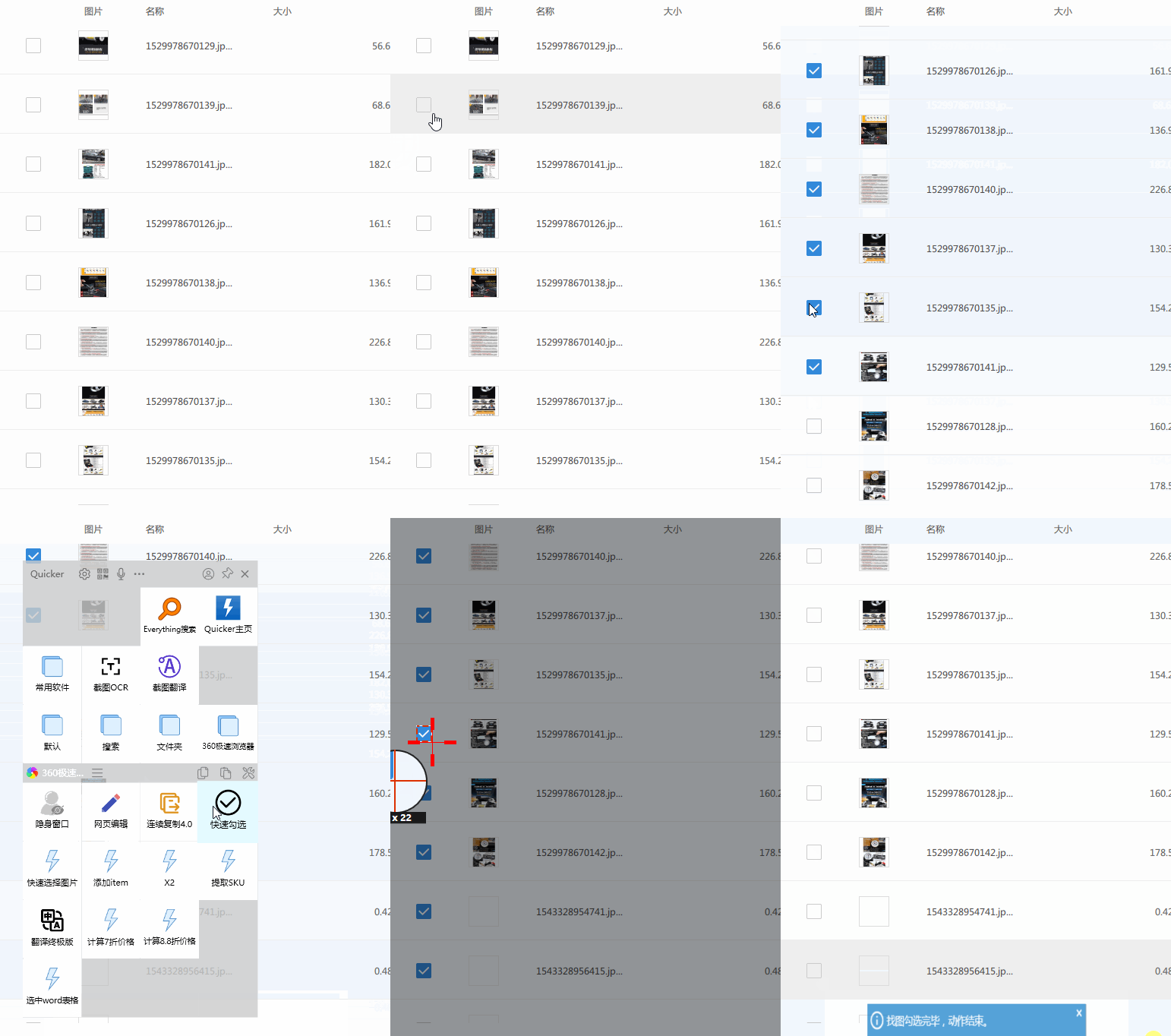
I suggest you definitely download and try this software. It’s the kind of experience you can’t go back from once you’ve used it.

And Quicker’s action library already contains many actions created by other users. In most cases you only need to copy and paste to start using Quicker to its full potential.
Quicker comes in a free edition and a pro edition. If you feel you need to buy the pro edition, you can enter my referral code 2923-4897; this gives you three extra months of subscription, and I get a reward too.
2.7.5 RescueTime - Time Management
I have a habit of writing a daily report, but as I get older my memory declines badly, and sometimes I forget what I did today…
RescueTime can track how long you use each program and web page, form reports, and show you at a glance what you did today.
It supports all platforms, making it easy to aggregate your stats.

2.7.6 Sandboxie - Sandbox
In the course of battling all kinds of rogue Chinese apps, I’ve accumulated some experience. But sometimes they’re still hard to guard against.
There are also some apps you have no choice but to install, or small tools you don’t quite trust.
A sandbox solves this problem well: the software runs inside the sandbox and doesn’t affect the normal operation of the system in the slightest. It’s a great weapon against rogue apps.

For a detailed introduction, you can refer to this article: Find a good home for toxic apps: Sandboxie, a lightweight, easy-to-use Windows sandbox tool
2.7.7 NetEase Cloud Music - Music
You’ll still want to listen to music, so just pick the platform you like. As for NetEase’s insufficient music catalog, you can solve it by configuring the UnblockNeteaseMusic project.

2.8 Essentials for a New Setup: File Sync / Downloads
2.8.1 Jianguoyun (Nutstore) - Cloud Drive
My main cloud drive, and the best multi-device sync drive in China.

If you need to sync files across multiple devices, Jianguoyun is definitely your first choice in China. Of course, if you have no hard need, OneDrive is actually enough.
Free Jianguoyun users get 1 GB of upload traffic and 3 GB of download traffic per month. Pro users have no limits, at 199 yuan a year.
One more thing: if you need to transfer/sync files between an iPad and Windows, take a look at this article: Getting started with file management on iPad OS.
2.8.2 FileZilla - FTP Management
In everyday scenarios, the FTP protocol lets your phone or tablet access files on your computer more conveniently.
Although Win10 has built-in FTP functionality, it’s not as convenient to manage and use as FileZilla. If you have this need, give FileZilla a try.

2.8.3 GoodSync/AirExplorer - Cloud Drive Management
GoodSync and AirExplorer have similar functions; both are used for folder synchronization. It can be “local to local”, “local to cloud”, or “cloud – local – cloud”.

They support common cloud drives and protocols, and are another option for file backup/sync. You can set up scheduled backup/sync tasks to automate things.
GoodSync has a free promotional period every year, so if you’re not in a hurry, you can wait for it.
2.8.4 qBittorrent - Magnet Downloads
A magnet download tool, and a good alternative to Xunlei. For ordinary resources, I’d more strongly recommend using Baidu Netdisk’s offline download feature, which is more convenient.

Of course, magnet downloading depends on good trackers; you can add trackers from here.
More: Stop asking me what a BT torrent is
2.8.5 IDM - Non-Magnet Downloads
This should be a must-have download tool on Windows.

- Multi-threaded acceleration
- Resumable downloads
- Batch downloads
- Web page sniffing
- …
With IDM, the only things that can limit you are the server and your own network bandwidth.
For a detailed introduction to IDM, you can refer to Running Cheese’s article.
2.9 Essentials for a New Setup: Creative Toolbox
2.9.1 Adobe Suite - Editing

You’ve got to have a full periodic table’s worth of them.
2.9.2 Eagle - Asset Management

Official accounts, websites, videos, mini programs: once you have many projects, you can’t keep up with organizing the materials, and searching is inconvenient too. Eagle is built specifically to help you organize assets efficiently.

For a more detailed description: Eagle: the “Evernote” of image management, helping you collect inspiration and organize assets better
The regular price is 199 yuan, or 149 yuan for group purchases.
2.9.3 PicGo - Image Hosting
On Windows, Typora can handle the text side of writing Markdown, and PicGo handles the image hosting side, so that images inserted in Typora are automatically uploaded to the image host, which greatly improves the Markdown input experience.
By default it supports Weibo image host, Qiniu, Tencent Cloud COS, Upyun, GitHub, SM.MS, Alibaba Cloud OSS, and Imgur, covering the upload needs of different image hosts. Starting from version 2.0, you can also develop plugins yourself to meet the upload needs of other image hosts.

2.9.4 XnConvert - Batch Image Operations
XnConvert helps you operate on images in batches, including but not limited to: rotating, converting formats, compressing, cropping, and adjusting color. It supports many image formats, and batch settings can be saved for reuse.

2.9.5 Riot - Image Compression
The official-account backend has size limits for images and animated images, and online services either give dismal results or charge money. You might as well try Riot, a free little tool.

One last reminder: you can download the software mentioned in this article through the official links, or reply with the same keyword on my WeChat public account Zatan by Lixing to get the organized collection pack of 70+ apps.
3 Daily Use
3.1 Installing New Software
3.1.0 Downloading
I mentioned this at the start of the article; I’ll stress it once more here.
- Download from the official site or GitHub whenever possible; you’ll be far less likely to run into rogue software.
- If you have enough space, I suggest not deleting installers after downloading them, but moving them straight into a “reinstall backup” folder. It saves a lot of trouble when you reinstall.
- For niche software and small tools, remember to back up the installer.
- For large software, it’s best to keep a local backup too; otherwise pulling a multi-GB file down from the internet again can take a long time.
3.1.1 Installing
- For all Chinese-made software, do not choose options like “Quick Install” or “One-Click Install”; check step by step.
- It’s best to manage install locations uniformly; for details, see Running Cheese’s article: The Great Way is Simple: how to use Windows efficiently?. Of course, if you can’t be bothered to manage this, the default location is fine too.
- After installing, remember to check startup management; don’t trust the software’s own autostart option.
- You can use the Start menu as the entry point for software, and manage your software by category there.
3.2 File Backup
If you lose your computer, it’s only a bit of money lost, which you can earn back later. But if you lose your data, no amount of money can get it back.
You can’t overstate the importance of data security. This topic could be expanded into a series of its own, but given the theme here I’ll just briefly mention the options for online backup.
For ordinary Windows users, using OneDrive well for backup is actually enough. If 5 GB isn’t enough, you can share a Microsoft 365 Family subscription with others for a little over 50 yuan a year and get 1 TB of space. Of course, you can also buy Microsoft 365 Personal directly and save yourself a lot of hassle.
Microsoft 365 here includes not only OneDrive’s 1 TB of space, but also multi-platform use rights for the Word, Excel, and PowerPoint trio.

I strongly advise against using those few-yuan, 5 TB OneDrive accounts from Taobao for file backup. Such accounts are fraudulently registered and may be banned by Microsoft at any time. Moreover, the files in the account can be viewed and deleted at any time by the system administrator, with no privacy whatsoever.
As for Baidu Netdisk, its Windows client supports backing up up to five local files if you’re a member, which is not a bad option either.
And for Jianguoyun, as mentioned above, if you need multi-device sync it’s the first choice in China. If you don’t have that need, you can still download and try it; free users have no limits on space or speed, only on capacity. (Jianguoyun, if you’re reading this, please give me a renewal discount, thanks.)
For more on data security, you can refer to these articles:
Don’t want ransomware to wreck your data? Back up your files by the “3-2-1 rule”
What are the best data backup solutions for individual users?
3.3 System Security
Everyone says that Microsoft’s own “Windows Security” is enough to keep the system secure, and there’s no need to install third-party security software.
But if you don’t know much about computers, or you’re helpless against rogue pop-ups, I still suggest installing third-party security software. “Windows Security” can stop viruses, but can’t stop rogue software.
That said, I don’t recommend installing the ringleader of the rogues, 36o, or the various “XX PC Manager/Master” products. Just install Huorong. It’s clean, worry-free, and hassle-free, and it can deal with the vast majority of rogue software.

3.4 Finding and Solving the Pain Points in Your Workflow
Although I’ve recommended 70+ apps above, the most valuable part of this article is actually hidden in the paragraphs below.
There’s nothing new under the sun. In fact, 80% of the problems we run into when operating a computer have been met by people before us, who may have offered software or solutions.
What you really need to do is:
- Keep discovering pain points and improvable spots in your workflow
- Search and ask questions in the right way
- Find or create a solution and record it (clip it into Evernote or print it to PDF)
For example, I find the little arrow on shortcut icons ugly. So I search “delete shortcut arrow”, and sure enough there’s a pile of solutions.

There are many examples like this. Begin with the end in mind, and let time polish your workflow bit by bit; slowly, your PC will become a “power tool” of your own.
“You’ve read this far, so won’t you give it a like?”

Also, because this article is published on multiple platforms, to avoid some questions being asked and answered repeatedly I’ve compiled an FAQ for everyone to check. You can also fill out this form to add questions to the FAQ.
Click here to view the FAQ document
4 Your Physical Setup
It’s hard to get through a modern workday without a computer, and many people spend most of the day in front of one.
If you’re like me and long hours at the computer often leave your lower back, wrists, and hips sore, take a look at this setup I put together for under 500 yuan. It has eased those problems considerably.
What chairs are better for long hours of work/gaming, and what are the criteria for judging?
My shoulders and neck can’t take it anymore. How can I relieve this?