Translated from the Chinese original.
A Beginner’s Guide to File Management on iPad OS
Note: in what follows, iOS and iPad OS are not distinguished.
This article is mainly for people who frequently need to transfer or sync files between a computer and an iPhone or iPad. It’s aimed mostly at Windows users, though Mac users may find it useful too.
Before I got my iPad, what worried me most was iOS’s file management capabilities. But after tinkering with it for a while, I found that the problem can actually be handled reasonably well with a variety of approaches.
In nearly a year of using my iPad, I’ve rarely used a cable except for charging — almost everything is transferred wirelessly.
Wireless transfer comes down to two approaches: a third-party cloud drive, or a direct connection between the computer and the tablet. Each has its pros and cons, and below I’ll share some of my experience and the pitfalls I’ve run into.
Every method in this article is aimed at one thing — convenience. Share a file from iOS, and the computer receives it automatically, with no download needed.
Third-Party Cloud Drives
OneDrive
1 Clients on every platform: Windows, Mac, iOS, Android, and the web.
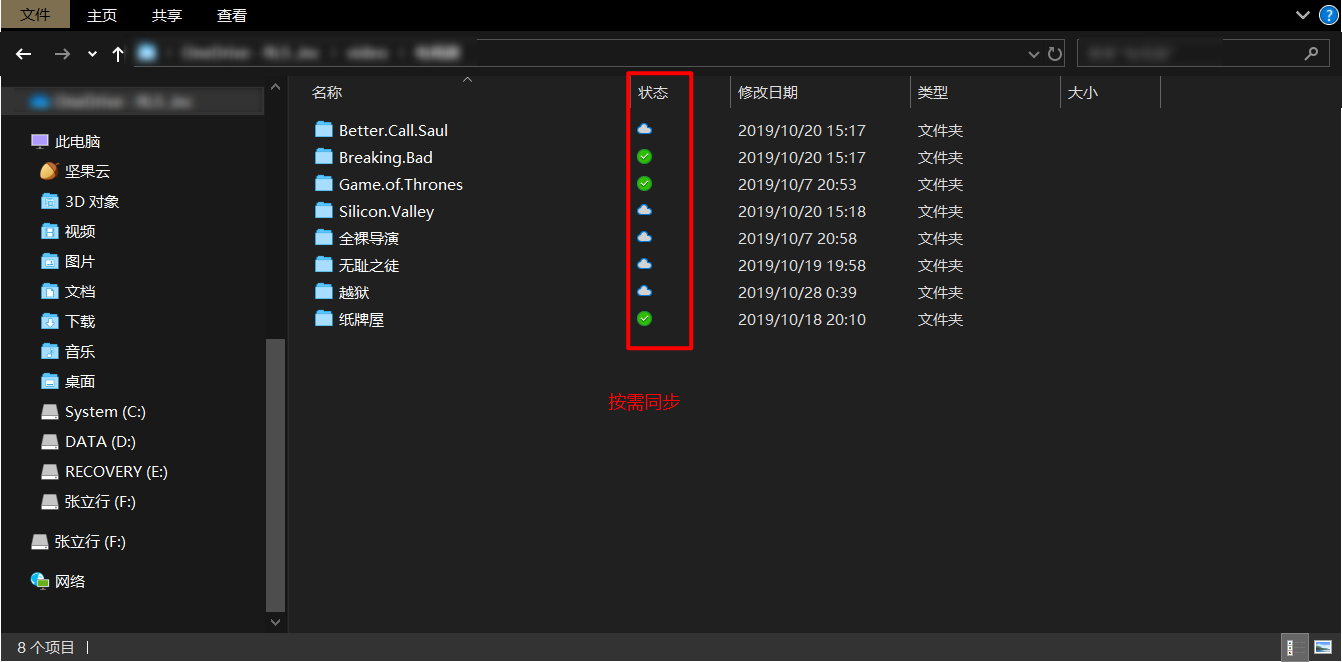
2 On Win10, files in the OneDrive folder can be set to sync automatically or on demand, which is quite convenient.
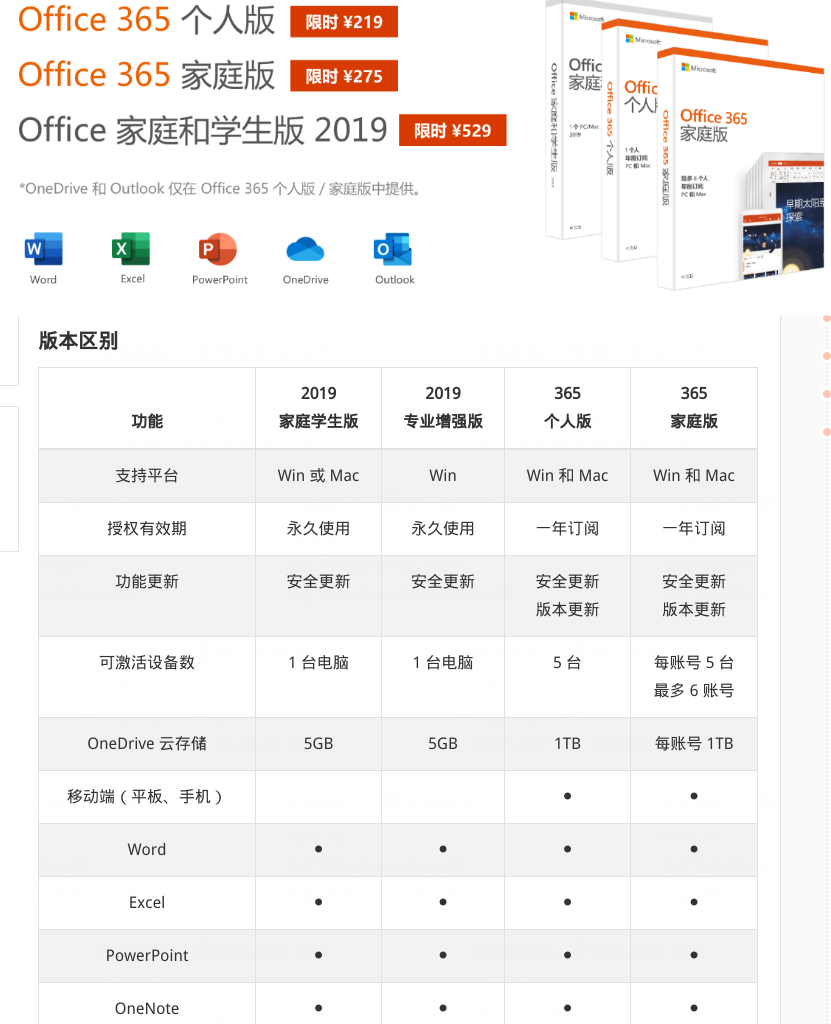
3 The personal edition comes with 5 GB of space (plenty if you only use it for syncing files), and the Office 365 edition comes with 1 TB. Some universities in China let you apply for Office 365 Education with a school email address, which also gives you 1 TB of OneDrive space. The application link is below.
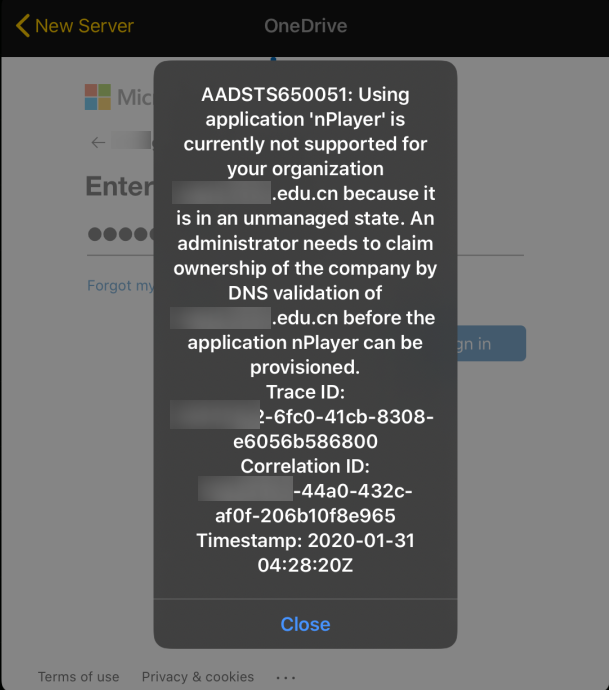
4 OneDrive supports many third-party integrations, but note that if your OneDrive Education account was set up with a Chinese school email (ending in .edu.cn), it may fail to connect properly in some third-party apps (such as nPlayer, PDF Expert, Documents, and Notability). It works fine in Microsoft’s official apps, though.
5 The web version of personal OneDrive can’t be accessed in China without a proxy, though the client can still connect. However, speeds can be unpredictable across different OneDrive versions and carrier networks. Possible fixes are linked below.
6 If your C drive is short on space, I recommend moving the OneDrive folder to another drive. A tutorial is below.
More
Office 365 Education signup page
How to change the storage location (path) of the OneDrive folder
Syncing files with the OneDrive sync client in Windows
Setting up OneDrive to automatically sync any folder
Why OneDrive transfers are slow, explained and analyzed
Jianguoyun (Nutstore)

I’ve used Jianguoyun for three years, and it’s also my main cloud drive. Sync for any folder, incremental sync, collaborative sharing… it has enough features to earn the title of “the best sync-drive platform in China” (if anyone from Jianguoyun is reading this, please contact me to pay up, thanks).
1 It’s one of the best cross-platform sync clients in China, supporting syncing any folder on your computer, which is very convenient. It also has incremental sync, WebDAV, permission-based sharing, and many other thoughtful features.
2 The free tier gives you 1 GB of upload traffic and 3 GB of download traffic per month, and storage is limited by upload traffic. The paid tier has unlimited traffic and 30 GB of space (Professional edition, 199 yuan per year).
3 It’s one of the few cloud drives in China that supports WebDAV. For a detailed introduction to WebDAV, see the link. In plain terms, WebDAV can share the drive’s space with third-party apps (as long as the app supports the WebDAV protocol), allowing those apps to sync and share files through the drive.
Common iPad apps that support WebDAV include: Notability (convenient for exporting and backing up notes), PDF Expert (two-way sync between files and your computer), nPlayer (plays videos straight from the drive), WPS (quickly opens files from the drive), and Documents (a powerful file management app).
More ways to use Jianguoyun with WebDAV
iCloud
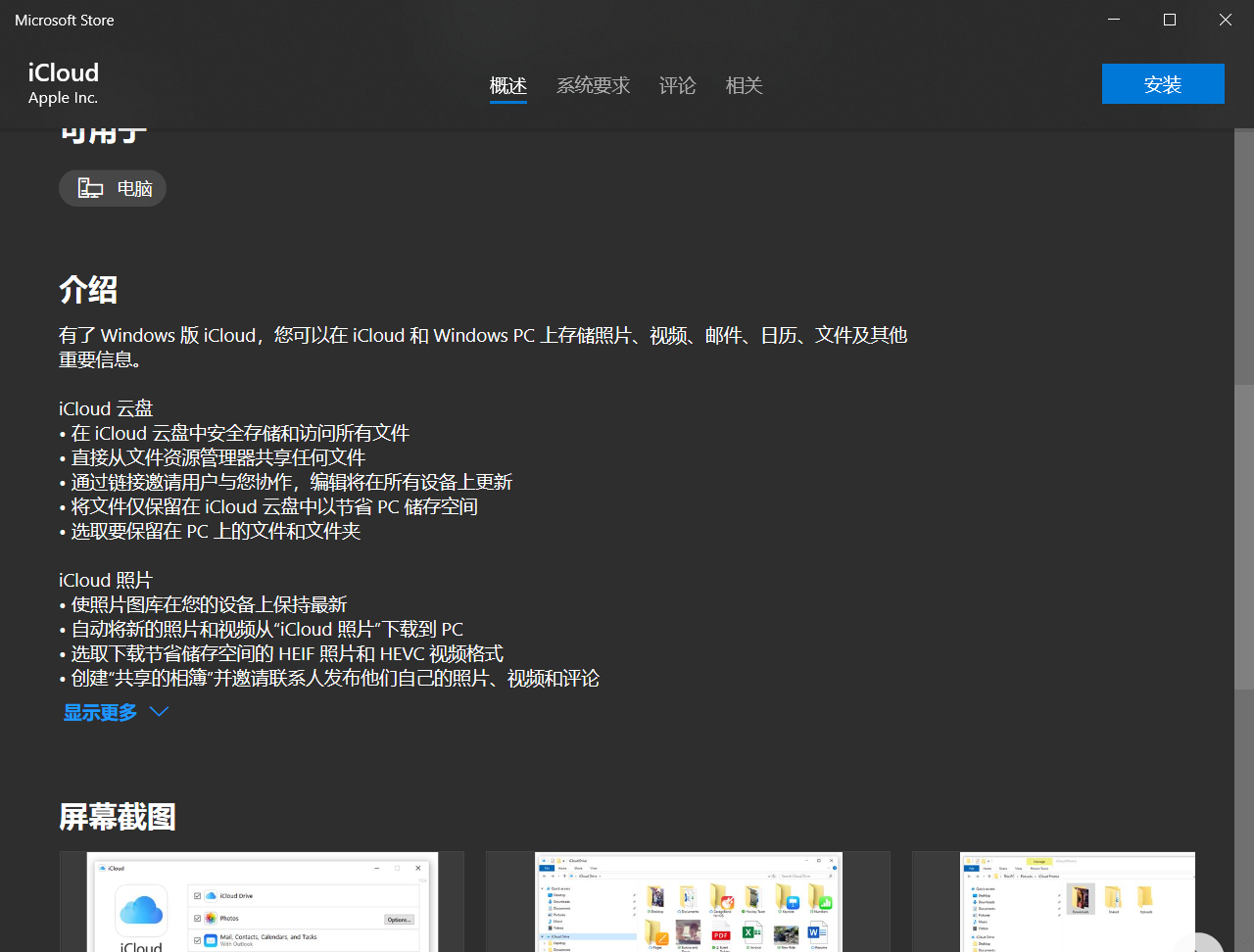
If you’re a Mac user, iCloud + AirDrop is clearly the most convenient choice. But Windows users can try iCloud for syncing files too.
The free tier has 5 GB of space. I strongly recommend buying the 50 GB plan (8 yuan per month) for backing up data from the many iOS apps. An iPad has a price; data is priceless.
iCloud on Win10 can automatically sync files in the iCloud folder. But installing iCloud on Win10 may interfere with OneDrive or other programs. If your computer starts showing small bugs it never had before after you install iCloud, try uninstalling it. I’ve reported this to Microsoft and don’t know how it stands now.
iCloud works best with iPad OS, as Apple’s own cloud service. Most apps that support cloud drives also support iCloud (some support only iCloud).
Likewise, if your C drive is short on space, I recommend moving the iCloud folder to another drive.
One more thing: for Notability version 9.2 and earlier, I don’t recommend using iCloud for automatic backup. A bug can make notes repeatedly disappear from the device and then download again from the cloud, which can be a real nuisance. I don’t know when a later version will fix this.
Connecting the Computer and Tablet Directly
Both methods below only work on a local area network (home Wi-Fi, campus network, company network). They have some limitations, but they win on speed. I don’t recommend that beginners tinker with applying for a public IP address, as it’s quite risky.
FTP Protocol + Documents + FileZilla
FTP is a file transfer protocol supported by many apps on iOS, Android, and computers.
Documents is a file manager on iOS that supports the FTP protocol, and FileZilla is software that lets a Win10 PC act as an FTP server (more convenient and fuller-featured than the FTP built into Win10).
Tutorial: setting up an FTP server with FileZilla on a Win10 LAN
Once FileZilla is installed on Win10, you can select any folders to sync.
Here are a few uses of FTP on iPad OS.
1. PDF Expert automatically syncs files in a folder
Besides WebDAV, PDF Expert also supports the FTP protocol. Through FTP you can sync files in any folder on your computer in both directions: modify a file on the computer and it’s automatically updated in PDF Expert, and vice versa.
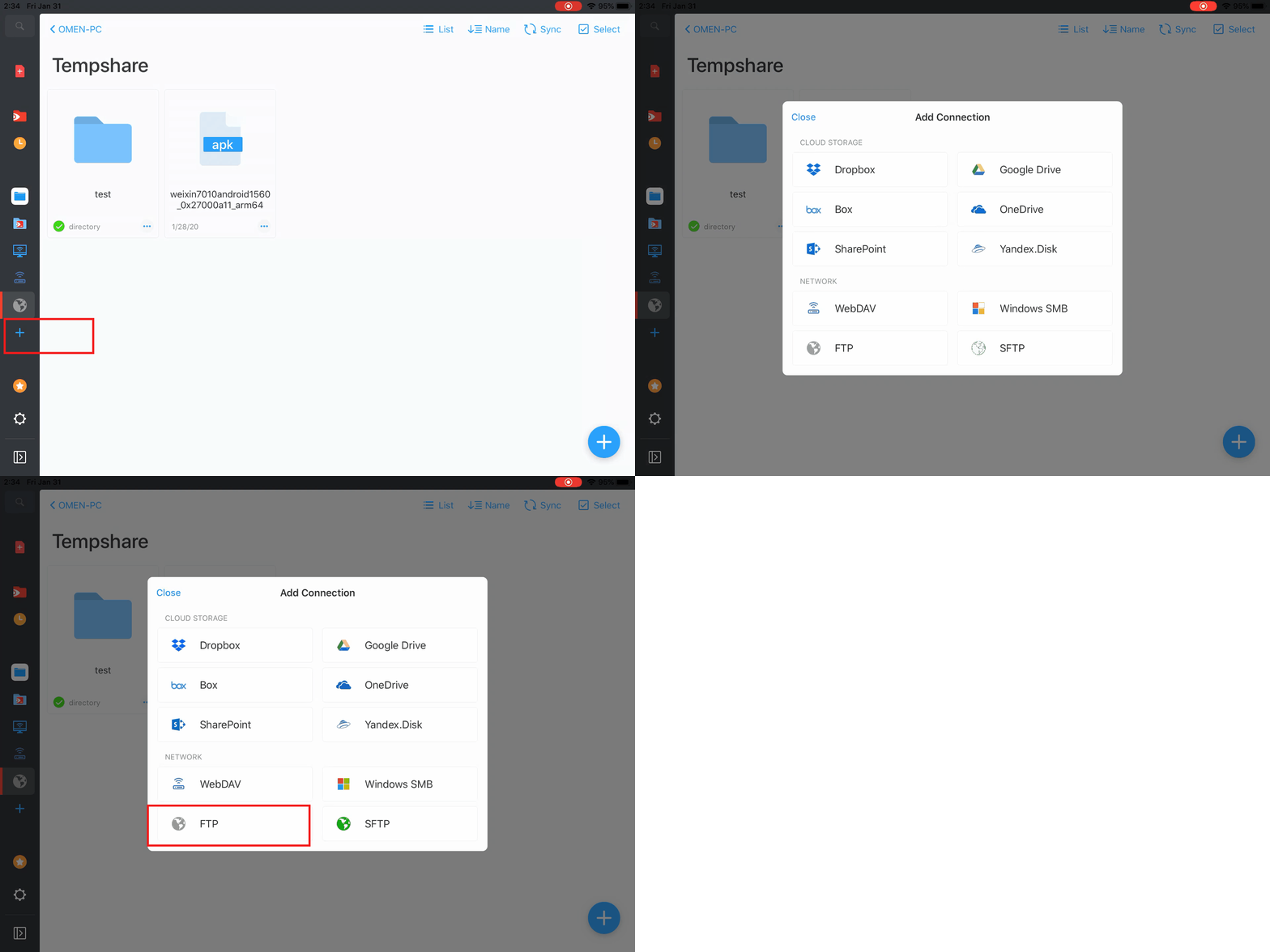
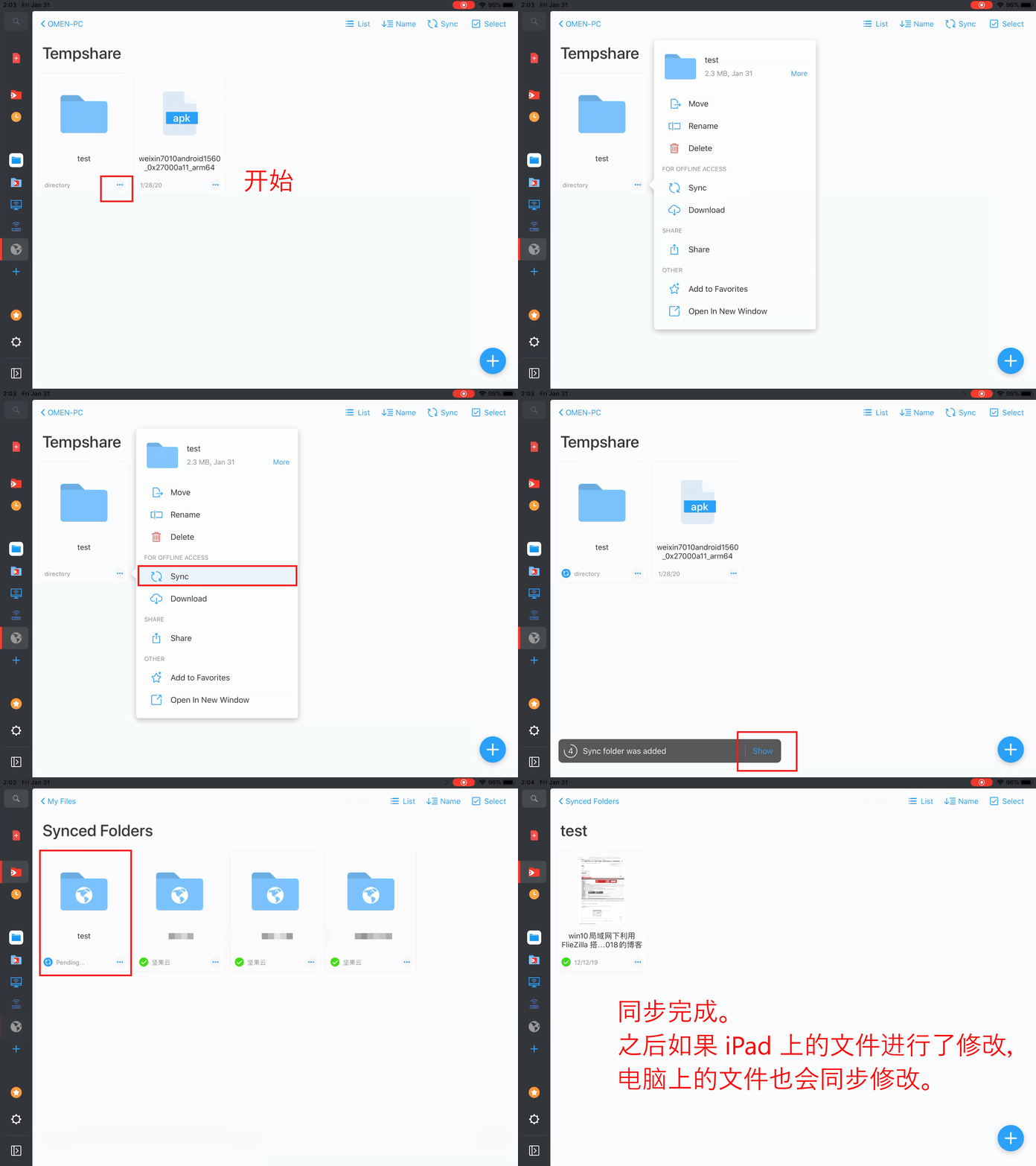
If you’re on a local network most of the time, this is a very convenient way to sync/back up your files.
2. nPlayer plays videos on your computer
You can stream videos stored on your computer directly to your iPad. nPlayer also has an Android client.
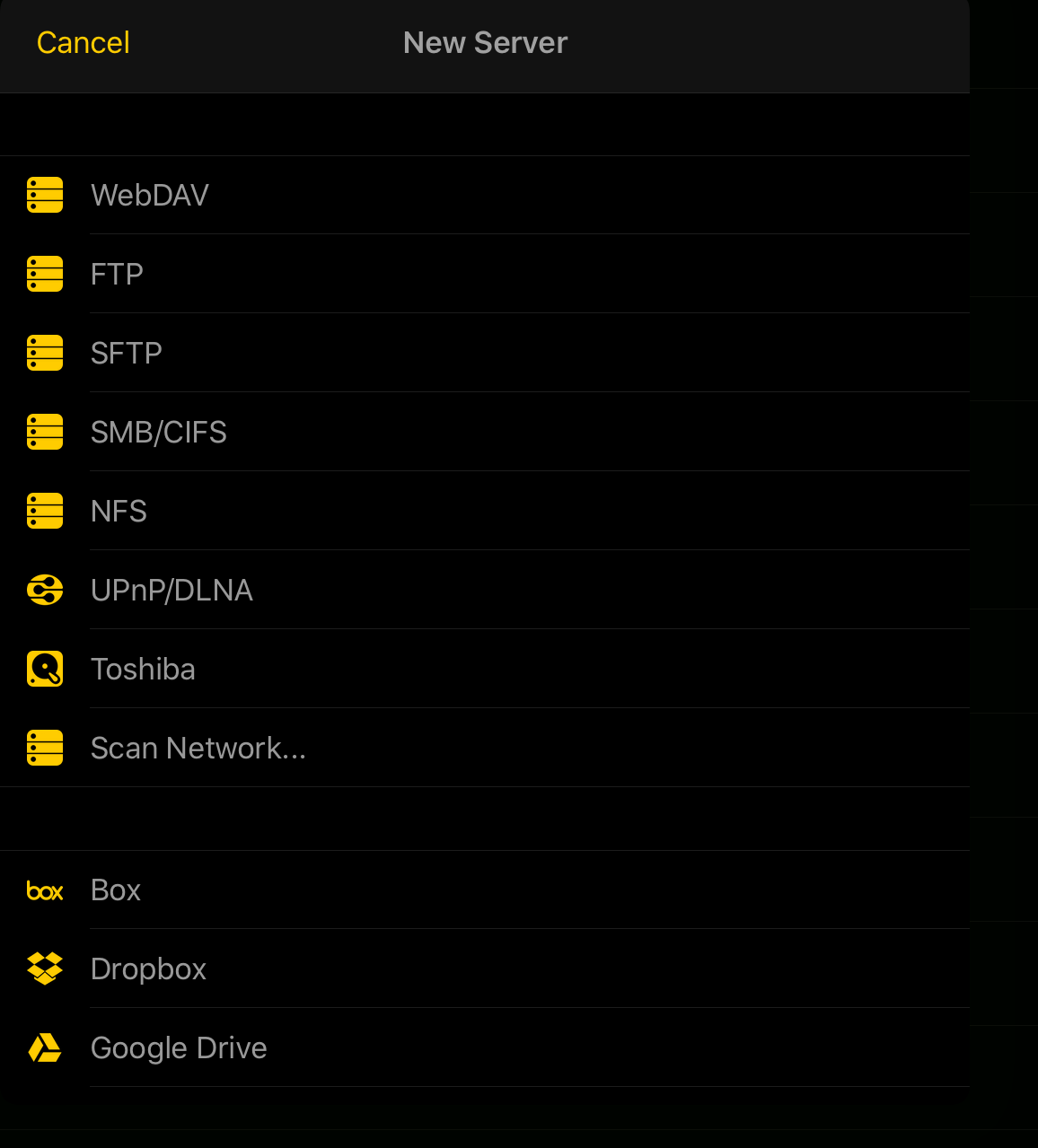
3. Documents transfers large files
Documents comes from the same developer as PDF Expert, so it also supports WebDAV and FTP. A file of a few hundred megabytes takes only a dozen or so seconds.
The one inconvenience is that you have to put the file into Documents first before you can transfer it over FTP. I don’t know when the iPad OS Files app will natively support FTP.
SMB Protocol + Files
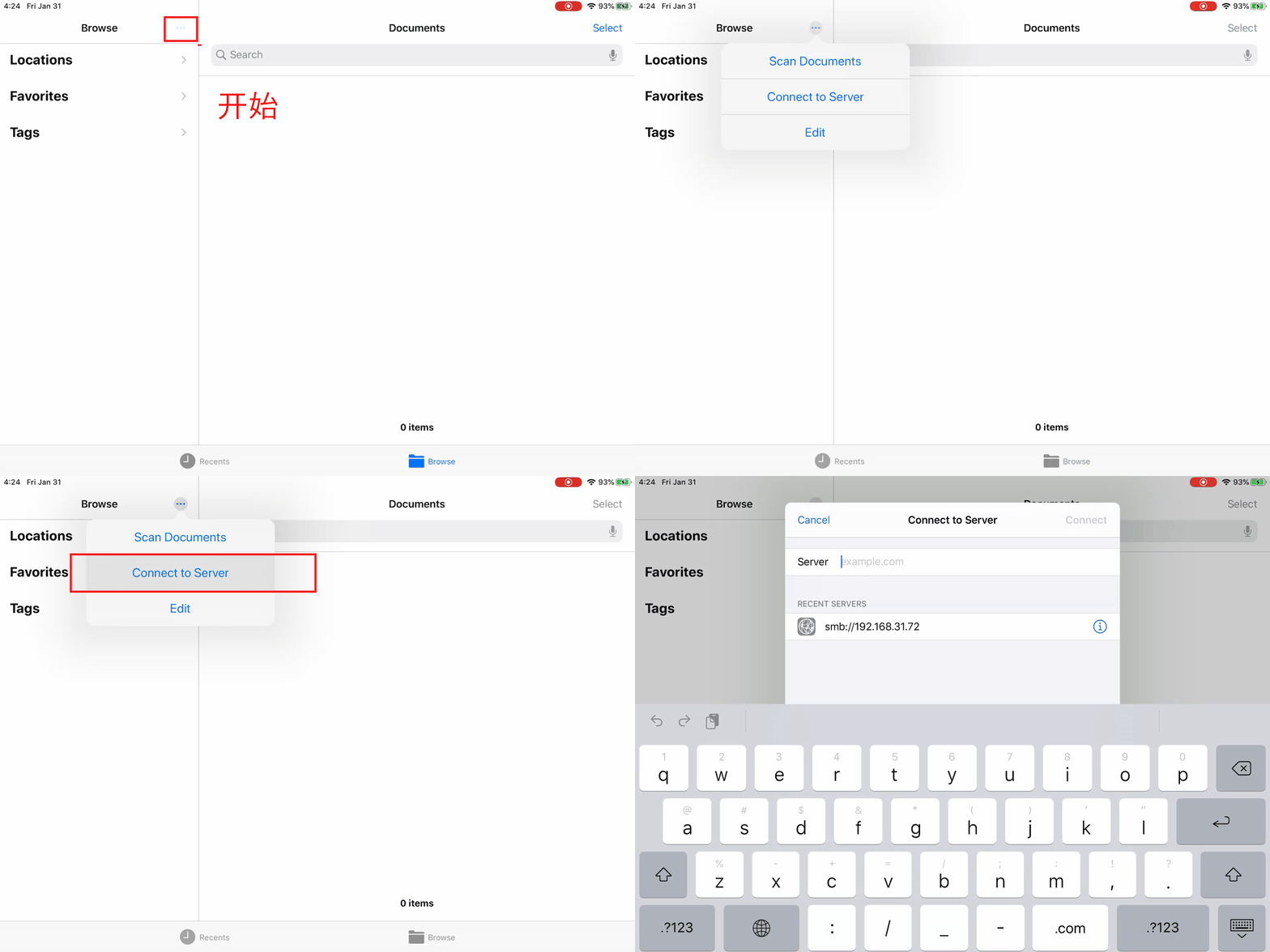
After updating to iOS 13 or iPad OS, the built-in Files app has a “Connect to Server” option. Windows can quickly transfer files to and from iOS over SMB.
Tutorial: setting up SMB on Win10 to connect to iOS
- Files supports SMB natively, making it one of the most convenient and fastest ways to transfer files on a local network.
- Complex, large local networks such as campus networks may run into inexplicable problems.
- After a successful connection, the server may mysteriously disappear from the sidebar after a later reconfiguration.
- You can likewise use nPlayer to play videos on the local network and PDF Expert to sync files.
A Few More Words
Make Good Use of iPad OS’s Built-in File Management
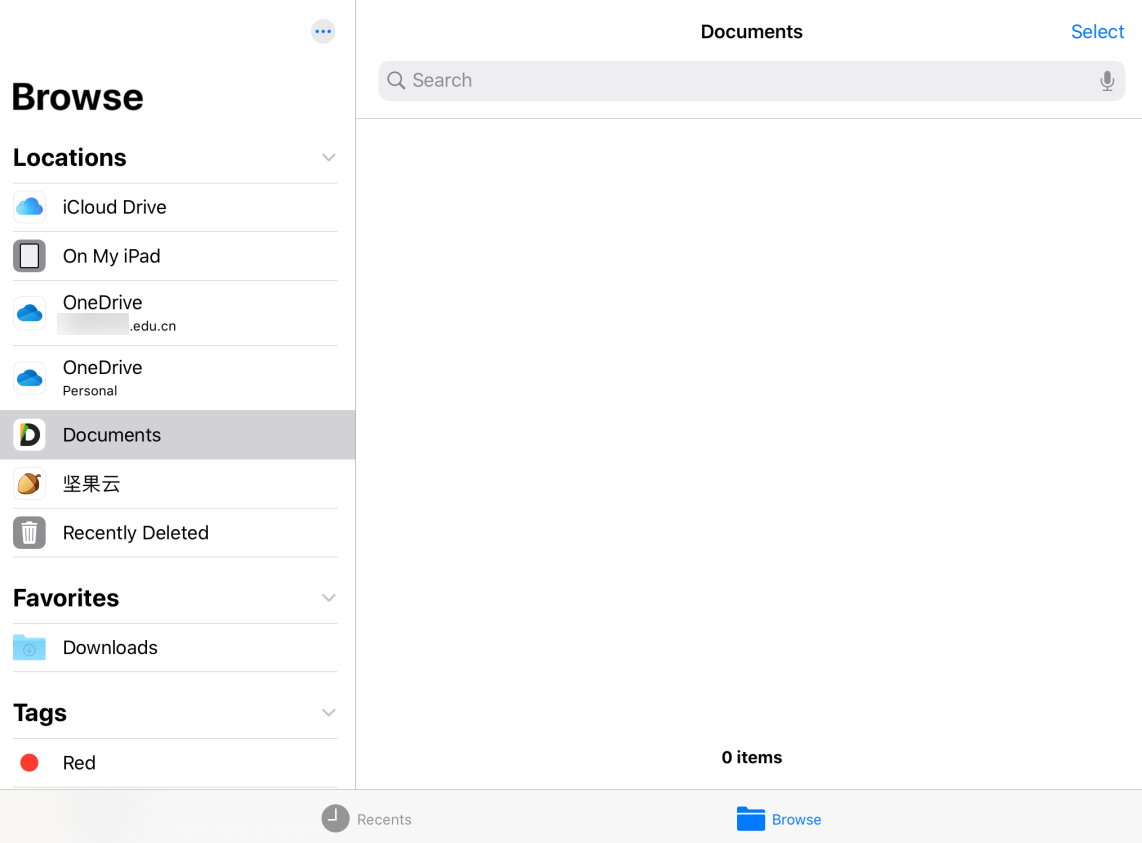
OneDrive, Jianguoyun, iCloud, and SMB can all be integrated into the built-in Files app, making them very convenient to use.
What About Other Cloud Drives?
Google Drive and Dropbox are actually very convenient once you’ve solved the network issue, but given most people’s network conditions, I don’t recommend them.
I don’t recommend Baidu Netdisk either: first, because of its speed limits, and second, because its ecosystem is too closed. It can’t work with other third-party apps or sync directly, so it can only serve as a file relay station.
Conclusion
If you’re an iPad + Mac user, iCloud is the best cloud drive choice. If you’re an iPad + Windows user, you can use OneDrive and Jianguoyun as your main cloud drives.
Using cloud drives wisely also reduces the load on the iPad’s own storage. My iPad has 32 GB, and after all this time I still have 7 GB left.
Also, if you’re often on a local network, consider trying FTP and SMB.
Finally, a bit off-topic: always back up your iPad’s data. If you lose an iPad, you can buy another, but if you lose the data, it’s truly gone.
First published on the WeChat Official Account Zatan by Lixing (杂谈by立行) (ztbylx).